Setting up an account
With Afi Backup for Microsoft Azure, you can configure periodic backups of your Microsoft Azure virtual machines, Azure SQL databases, Azure PostgreSQL servers, and Azure file shares in a few easy steps.
Info
Afi plans to extend Azure infrastructure support in the next product updates, including MySQL databases, Azure cloud configuration, and other workloads.
Info
You can also add and protect your Microsoft Azure Kubernetes clusters (both AKS and self-managed) with Afi as described in the Afi Kubernetes installation guide.
Create an Afi account
Please follow the Afi onboarding guide to set up your Afi account. After an account is created and your Microsoft Azure tenant is added, you can proceed with protecting virtual machines, databases, and Azure file shares, and running your first backups.
Protect resources
To start protecting your data, go to the Service → Protection screen and choose resources which you want to back up and their protection policies (SLAs). A protection policy defines how often backups are scheduled and how long backup data is retained.
Afi Backup for Microsoft Azure provides several predefined backup policies that you can use right away or modify/create new policies:
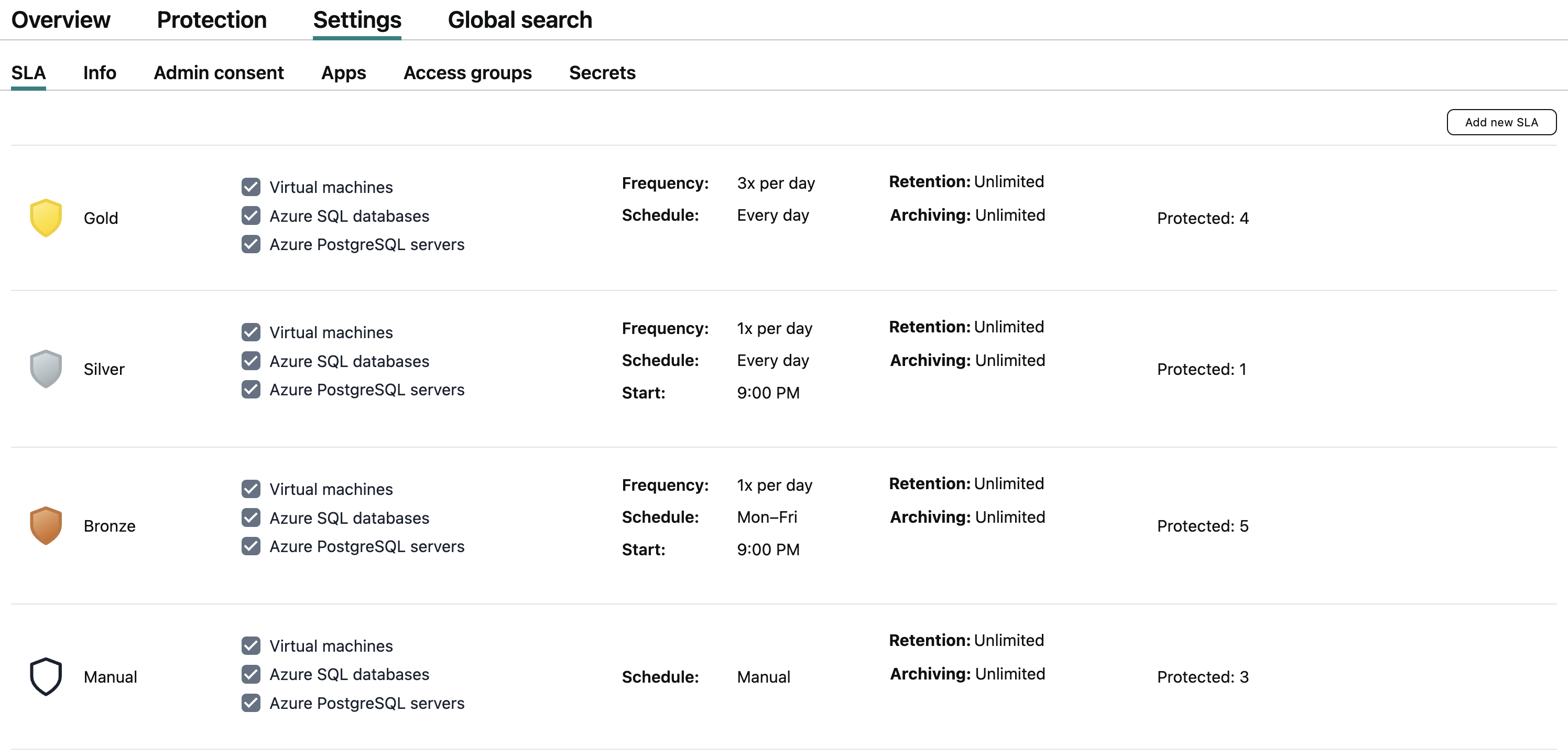
After that, you can assign protection policies to all resources in the Microsoft Azure tenant or select specific Azure resource groups to be protected.
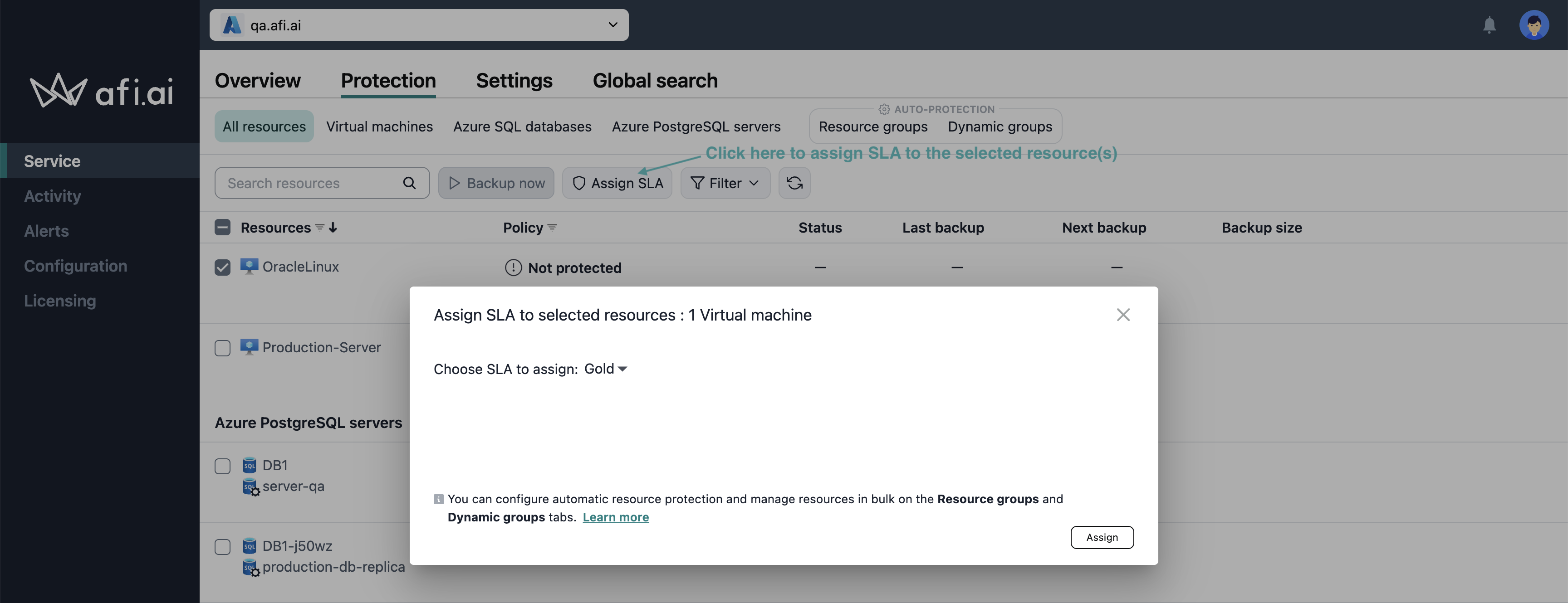
Assign SLA to a specific resource
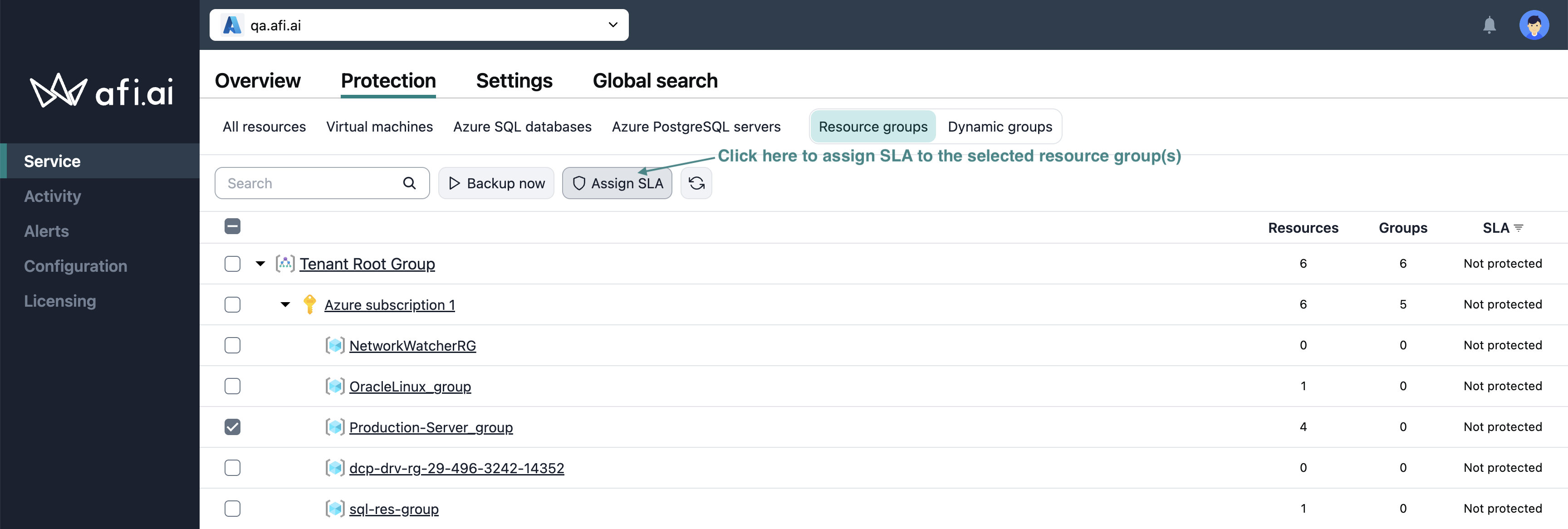
Assign SLA to an Azure resource group
Afi discovers management group, subscription, and resource group hierarchy for Azure tenants, enabling backup SLA mass-management for the discovered groups.
Assigning multiple SLA policies to a resource
For Microsoft Azure tenants, you can create multiple independent backup sequences for a resource (e.g., a virtual machine) by protecting it multiple times using different backup SLA policies (e.g., Gold and Silver). This approach enables you to back up resource data to multiple backup storage locations in different regions (coming in H2 2026).
Please note that each backup sequence is linked to its corresponding backup SLA policy. If you assign a new backup SLA to a resource and initiate a backup, it will create a new backup sequence from scratch.

Backup
When using protection SLA policies with a periodic backup schedule (for example, the default Bronze, Silver, and Gold policies), backups are performed automatically according to the schedule defined in the corresponding SLA policies.
Afi displays the time of the next scheduled backup on the Service → Protection tab for each resource protection. With the Manual backup schedule (for example, the default Manual policy), backups are not performed automatically and should instead be triggered manually.
Run backup
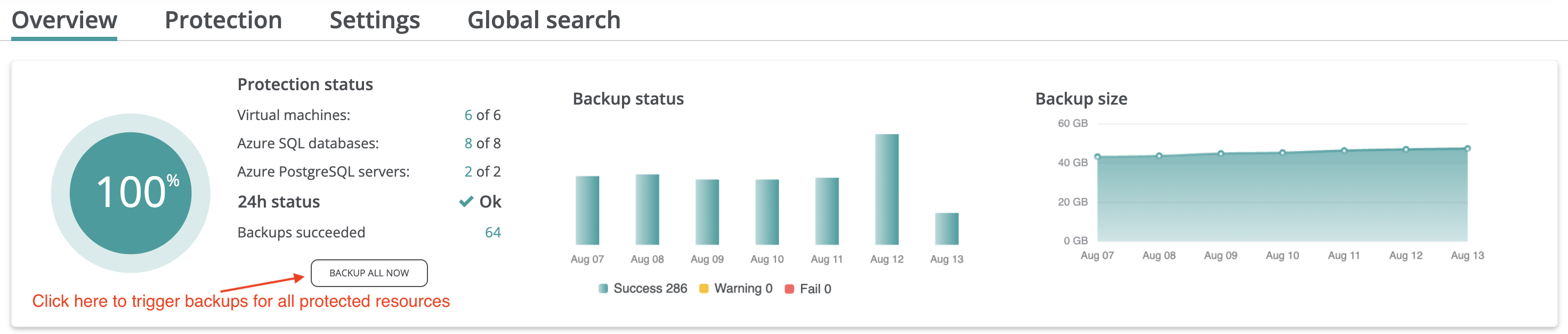
You can trigger an out-of-schedule backup for any protected resource, such as a virtual machine, database, or Azure file share, by clicking the backup button for the corresponding protection on the Protection tab. To run backups for all protected resources in the tenant, click Backup all now on the Overview tab.

Monitor backup progress
You can monitor the backup status on the Service → Protection screen (see the progress wheel in the Status column) or on the Activity → Tasks screen:


To simplify progress monitoring, you can filter tasks with In Progress status on the Activity → Tasks tab:

After a backup is completed, you can access the backup data by clicking the Recover button for the corresponding resource and policy on the Service → Protection screen.
Data browsing and preview
Virtual machines
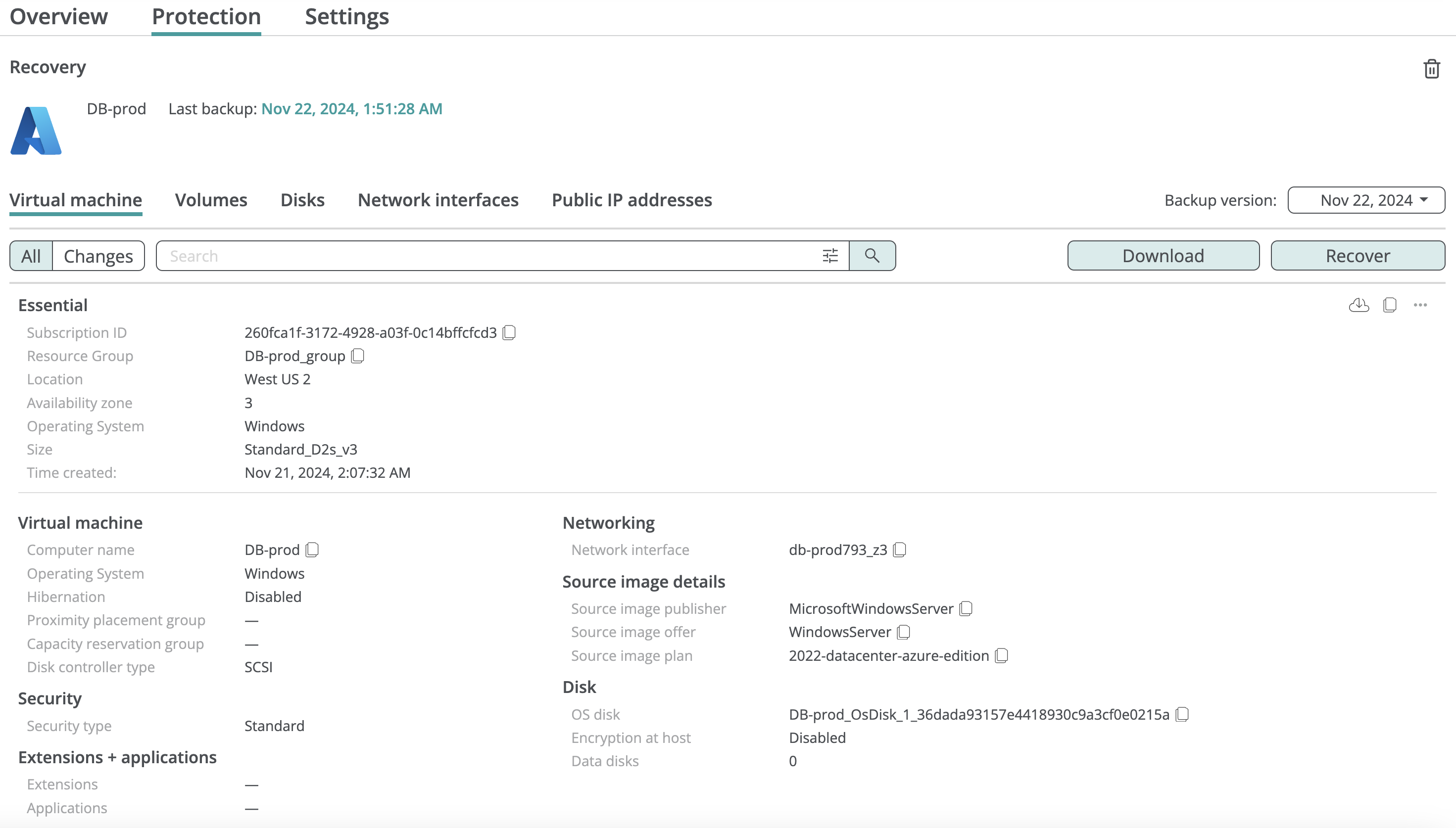
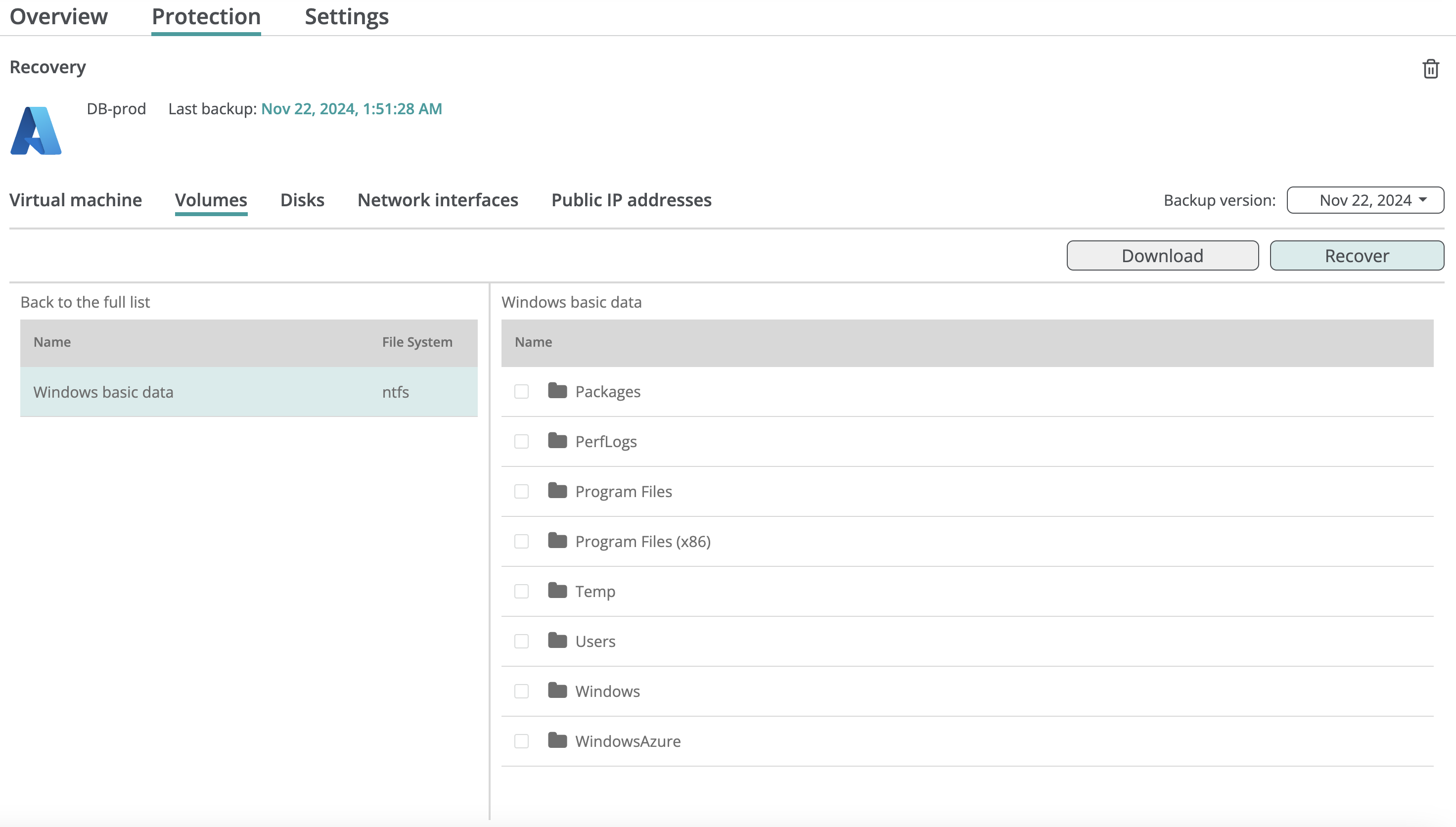
Inside the virtual machine backup, you can browse its configuration, data volumes, and volume content.
Databases
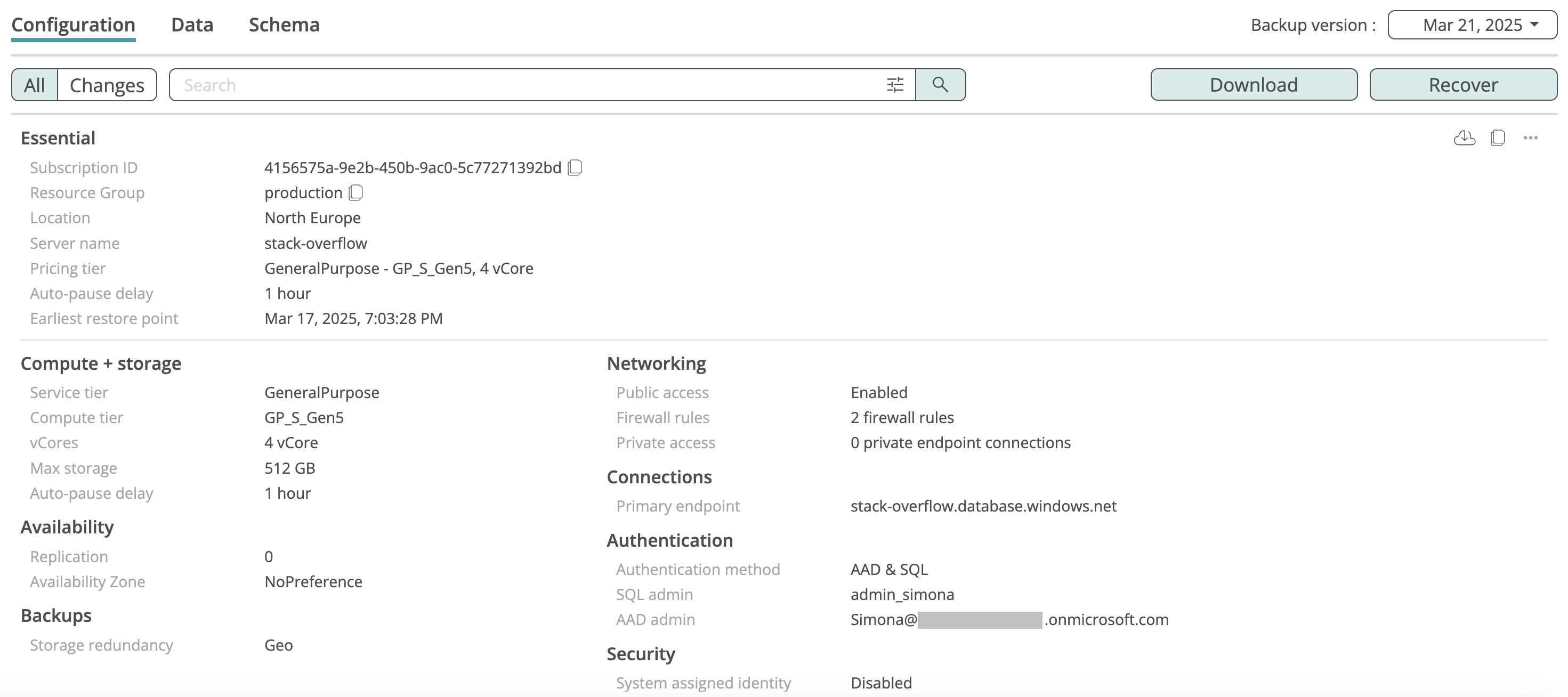
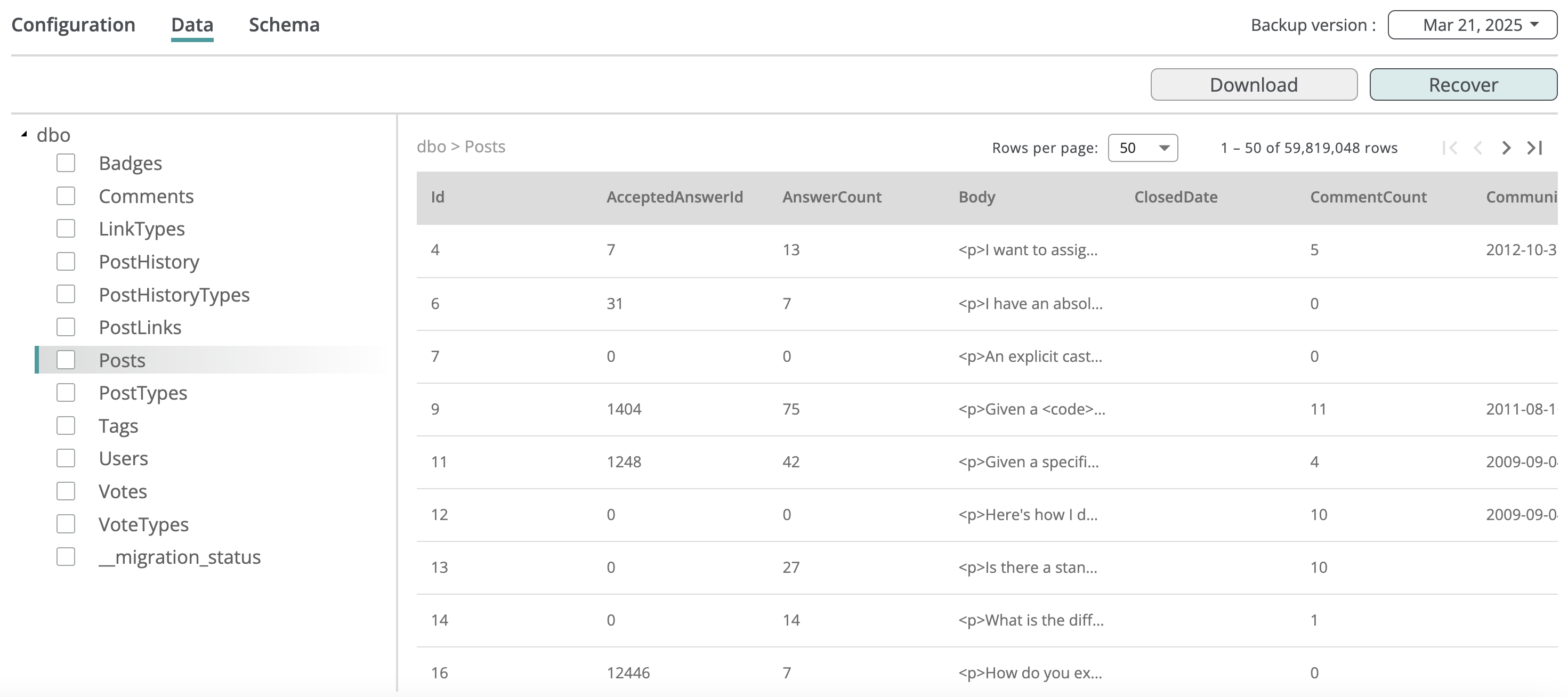
Inside the database backup, you can browse its configuration, schema, and table data.
Azure file shares
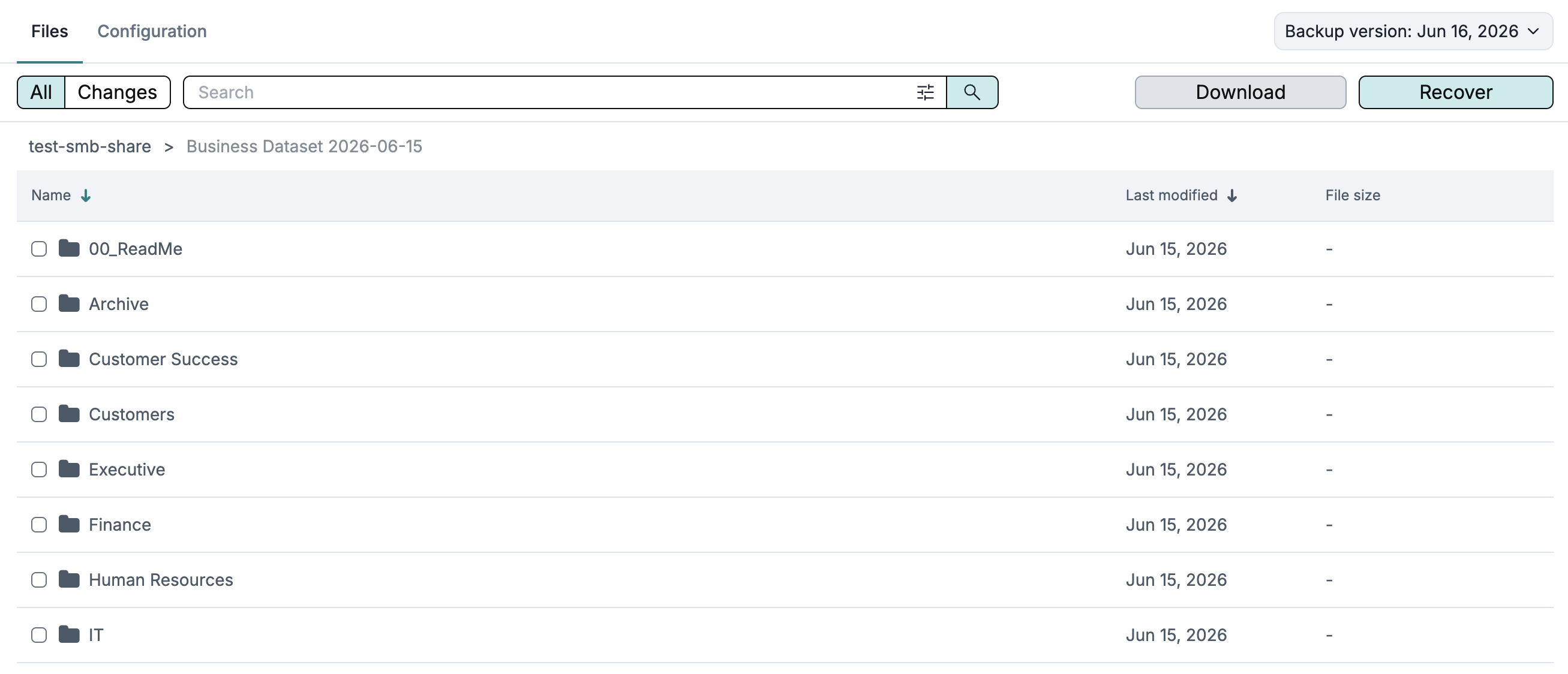
Inside the Azure file share backup, you can browse the storage account and file share configuration as well as file and folder content.
Search
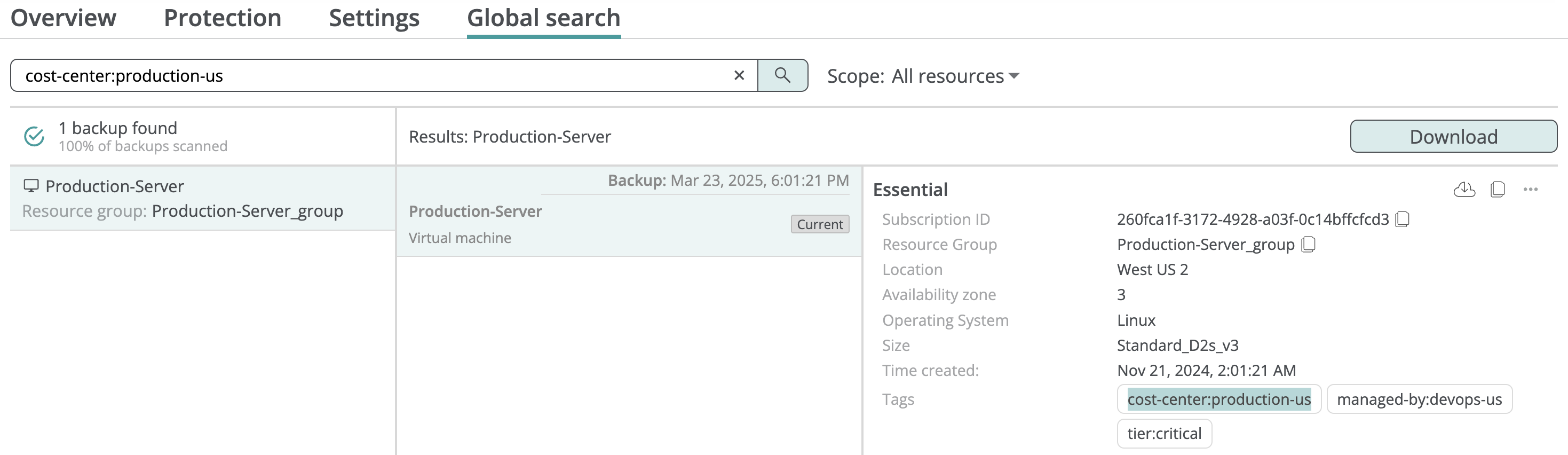
Afi indexes virtual machine, database, and Azure file share configuration, as well as Azure file share content metadata. This allows you to locate backed up resources matching certain criteria (name, identifier, tag, IP address, etc.) and find Azure file share files and folders by name and file properties via global search.
The example below shows a search query to match all backed up virtual machines with the cost-center:production-us tag:
Export
Afi allows you to export configuration and data for backed up Azure virtual machines, databases, and Azure file shares locally:
- Virtual machine configuration download - export virtual machine, disk, network interface, and public IP address Azure configuration.
- Virtual machine data download - export files and folders from virtual machine volumes.
- Azure SQL database configuration and data download - export configuration for Azure SQL database and its server, as well as database SQL schema and table data.
- Azure PostgreSQL database configuration and data download - export Azure PostgreSQL server configuration, as well as database SQL schema, and table data.
- Azure file share configuration and data download - export storage account and Azure file share configuration, as well as selected files and folders.
Data restore
Afi supports the following disaster recovery scenarios for Azure infrastructure:
- Virtual machine data recovery - restore virtual machines and disks to a new virtual machine/disk.
- Azure SQL database data recovery - restore databases to a new database in a selected Azure SQL server instance.
- Azure PostgreSQL database data recovery - restore databases to a new database in a selected Azure PostgreSQL server instance.
- Azure file share data recovery - restore a file share or selected files and folders to Azure.