Backup SLA policies
Afi SaaS backup for Google Workspace uses a concept of a backup SLA policy to protect resources (users, Shared drives, Classroom classes, Google Directory) and configure custom backup settings, such as frequency, scope and exclusion rules, retention and archiving settings, and encryption keys (Afi- or customer-managed). A resource or a set of resources can be protected by an SLA policy directly on the Service → Protection screen, or an SLA policy can be assigned to a group of resources on the Service → Protection → Organizational Units or Service → Protection → Google Groups tabs, enabling automatic protection for resources added to the group.
Backup SLA policies are managed on Service → Settings → SLA. Afi creates predefined Gold, Silver, Bronze, and Manual policies during onboarding. Administrators can also create additional SLA policies as needed, allowing them to customize protection for different sets of resources within a tenant. The service cost is not influenced by the backup SLA policies used, so you are free to select or configure any policies that best suit your use cases.
Backup SLA policy management
Backup SLA policies for a tenant are configured and managed on the Service → Settings → SLA tab in the Afi portal.
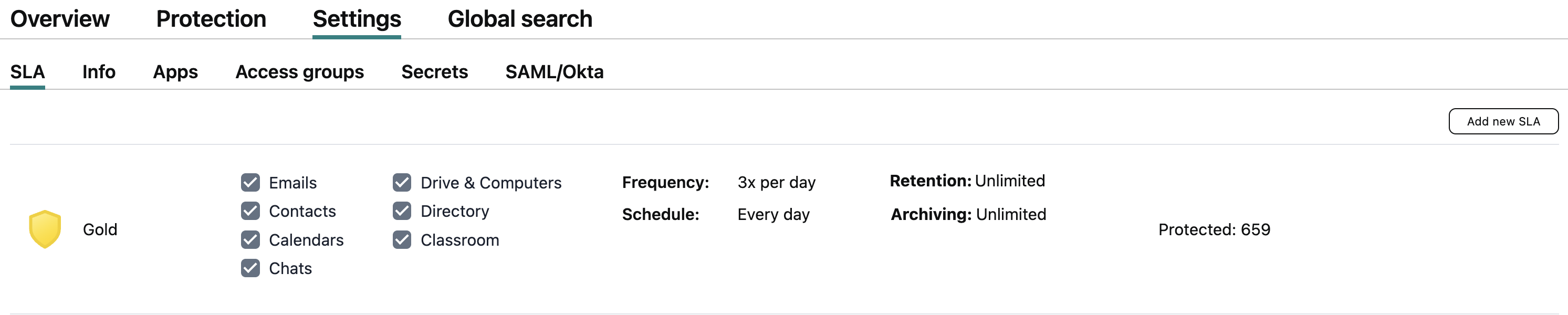
You can view and modify the settings of an SLA policy by clicking its tile in the policy list, or create a new SLA policy by clicking the Add new SLA button in the top-right corner of the screen.
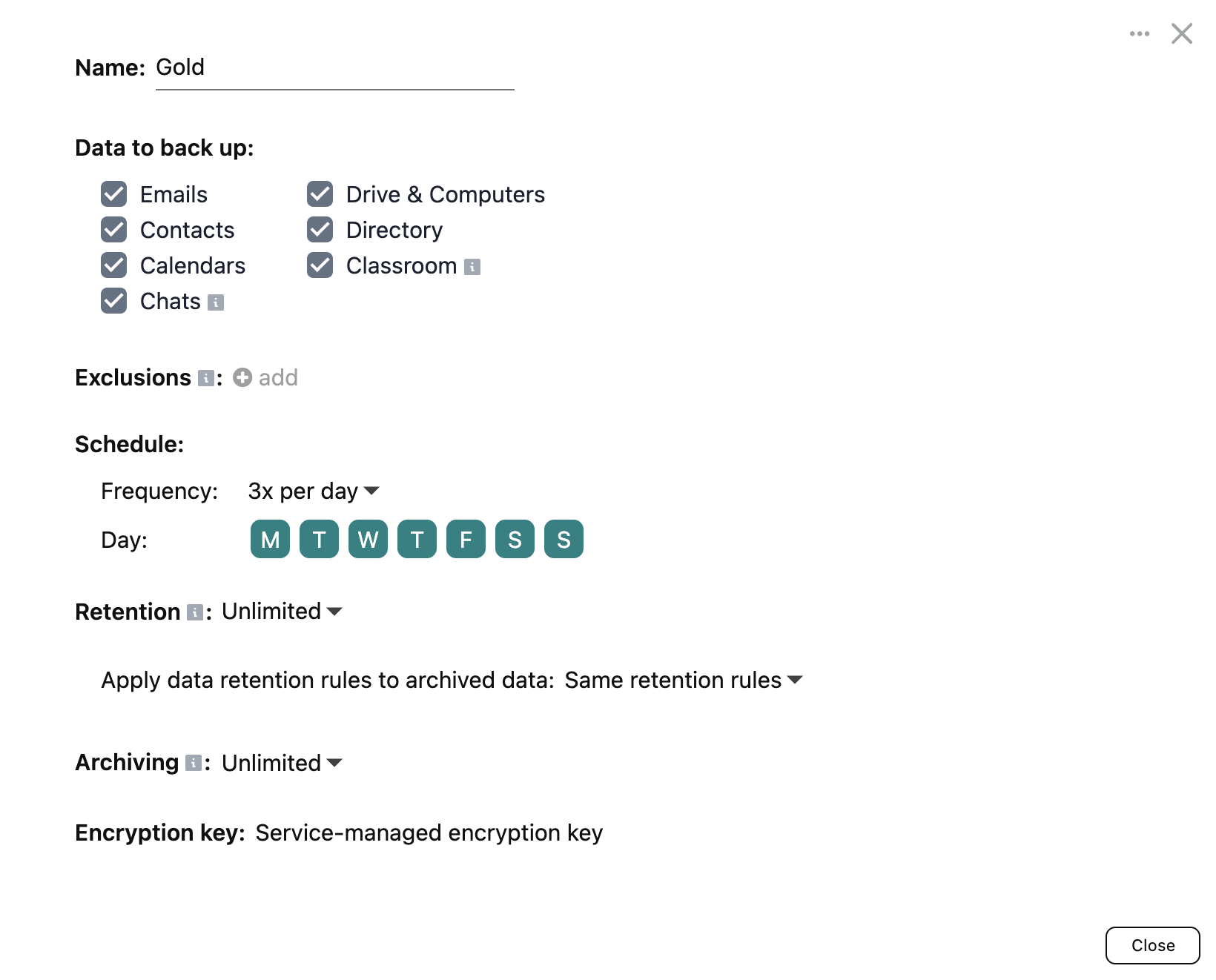
The available SLA policy settings are explained below.
Data to back up
This section allows you to configure which Google Workspace workloads are backed up by the Afi service for resources protected by an SLA policy. Detailed description of Google Workspace workloads supported by Afi is provided in this article.
You can enable or disable backup of specific workloads based on your use cases, for example, it allows you to create custom SLA policies that include only email data (Emails checkbox) or only Google Drive data (Drive & Computers checkbox).
You can assign a configured SLA policy to any resource, regardless of its type and workloads that it might contain. For example, you can assign an SLA policy that includes email data backup to a Shared drive - the Afi service will synchronize workloads available for this particular resource and skip workloads that are not applicable. This allows you to use a single SLA policy for all resources in your tenant in a generic way regardless of their types.
Info
If you disable backup for a specific workload (for example, Emails) in the SLA policy settings, the service will stop synchronizing data for this workload for resources protected with this SLA policy, but old data for this workload will remain in the corresponding backups. If you want to delete already synchronized emails or files after you have disabled the corresponding workloads in the SLA policy settings, you can add custom item-level retention rules to this SLA to delete emails or files older than the retention window.
Exclusion rules
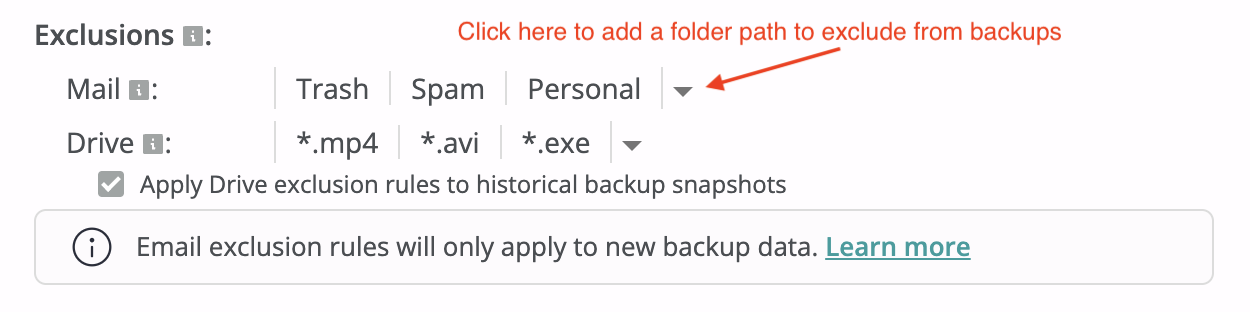
Afi allows users to configure rules that exclude the specified labels from Gmail backup and files with the specified file extensions from Google Drive backup. This can help you optimize the backup storage footprint and slow down backup storage growth by excluding unnecessary items that might consume a significant amount of storage, such as video recordings, images, and binary files.
Gmail
To exclude a label from backup, please add it in the exclusion list. After the configuration, the Afi service will stop synchronizing all emails that have any of the excluded labels assigned, even if they have other labels, not included in the exclusion list. For example, if an email has the Inbox and Personal labels and the Personal label is excluded from backup, such email won't be synchronized. If a backup already contains emails with labels from the exclusion list, such emails will still remain both in old and new backup snapshots.
You can add default Gmail labels (for example, Trash or Spam) to the exclusions as well as the user-created ones. When a label to be excluded is located inside another label in the label hierarchy (for example, the Other label inside the Personal label in the mailbox root), please specify the full path to the excluded label (Personal/Other).
Google Drive
To exclude files from Google Drive backup by a file extension, please add the extension (mp4, mp3, avi, etc.) in the exclusion list. After the configuration, the Afi service will stop synchronizing files with the specified extensions.
You can apply the configured file extension exclusion rules to the historical backup snapshots by checking the corresponding option below the rule. In this case, all file versions with the specified extensions will be wiped from all backup snapshots during the next periodic backup, freeing the backup storage that they occupy. Otherwise, such files will still remain both in old and new backup snapshots, but won't be updated any longer in the new backup snapshots in case of changes.
Notice
Excluding files/folders from backup by path or file mask is not supported at the moment.
Schedule
Schedule settings define how often Afi backs up resources protected by the policy. Choose automatic backups once or three times per day, or select Manual to start backups only on demand from the Afi portal. If the Manual frequency is selected, the Afi service will not initiate backups for the associated resources automatically. It is recommended to use the automatic backup options (once or three times per day) to ensure your data is backed up periodically and in a timely manner.
Automatic backups start within backup windows:
- Once per day: A single 9-hour window. Configure its start time with Starts at, in the time zone shown in the dialog.
- Three times per day: Three 6-hour windows distributed throughout the day.
Spreading backup start times across a backup window is essential to avoid peak loads on Google Workspace services and to prevent API throttling.
Retention
By default, Afi keeps all backup snapshots and item versions for each backed up resource indefinitely. However, you can configure custom data retention rules for an SLA policy to specify how long backup snapshots or items of a specific type (email/files) are retained by the service. The available data retention rules are described in the following article.
If you choose to limit how long backup data is stored by the Afi service, it is recommended to use backup version or GFS data retention rules. Item-level retention rules are more suitable for compliance-related use cases (for example, to keep email data for 7 years and delete all emails older than 7 years) and should be used with caution.
Retention and archiving rules are enforced for resources protected by an SLA policy through periodic backup jobs. If a resource is no longer protected by a backup SLA policy, Afi keeps its existing backup history, but does not apply custom retention or archiving rules.
Archiving
Archiving rules define how long the Afi service will keep a backup for a resource protected by an SLA policy after it is marked as Archived on the Afi side. A resource becomes Archived when the service can no longer synchronize its data with Google Workspace - either when a resource is deleted on the Google Workspace side or, in the case of a user, when it becomes suspended or archived. Archiving rules are described in detail in the following article.
Encryption
By default, all Afi backups are encrypted using per-tenant Afi-managed encryption keys. Additionally, Afi supports configuring customer-managed cloud KMS encryption keys that allow service administrators to meet regulatory requirements and gain an additional layer of control over their backup data. Customer-managed (BYOK) encryption setup is described in this article.
Protecting resources with a backup SLA policy
Once you have selected or configured a backup SLA policy that you plan to use, you can assign it to a resource or a set of resources on the Service → Protection tab. When a resource is protected with an SLA policy, you can trigger its backup by clicking the Backup button.
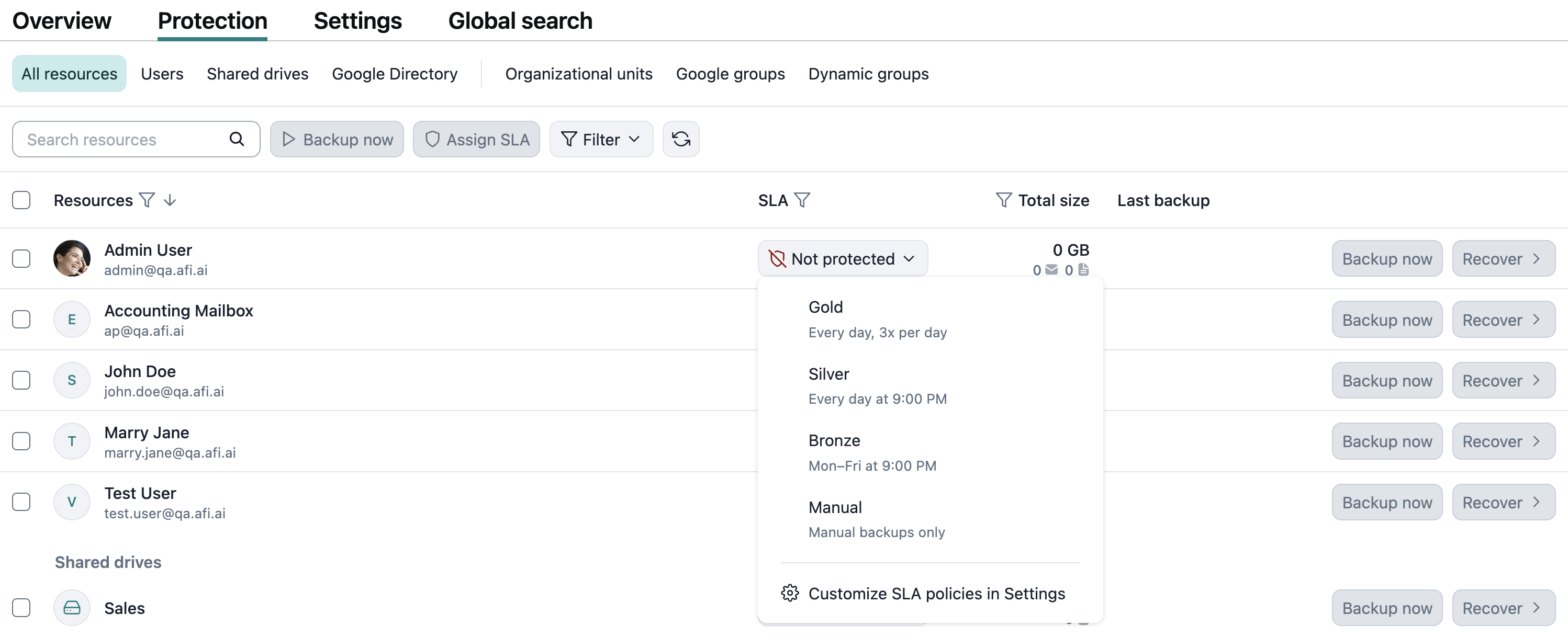
You can also assign a backup SLA policy to a group of resources and automatically protect all resources that are added in this group on the Service → Protection → Organizational Units or Service → Protection → Google Groups tab. Please see the following guide for more details.