Azure file shares
Afi provides comprehensive backup and recovery support for SMB and NFS Azure file shares, as well as online browse and export for file share data and metadata.
Azure Files backup is based on Azure file share snapshots. Afi captures the storage account and file share configuration, file and folder content, metadata, and permission information available through Azure Files APIs. You can browse and search backups, download selected files and folders, export JSON configuration, and recover a full share or selected content back to Azure.
Note
Azure Files backup requires public network access to be enabled for the storage account. If public network access is disabled, Afi can't reach the Azure Files REST endpoint and backup tasks for shares in this storage account will fail.
Info
If Azure file shares are not discovered after a resource synchronization, regrant Azure admin consent so Afi can provision the storage permissions required for Azure Files backup and recovery. See the admin consent regrant article for details.
Browse
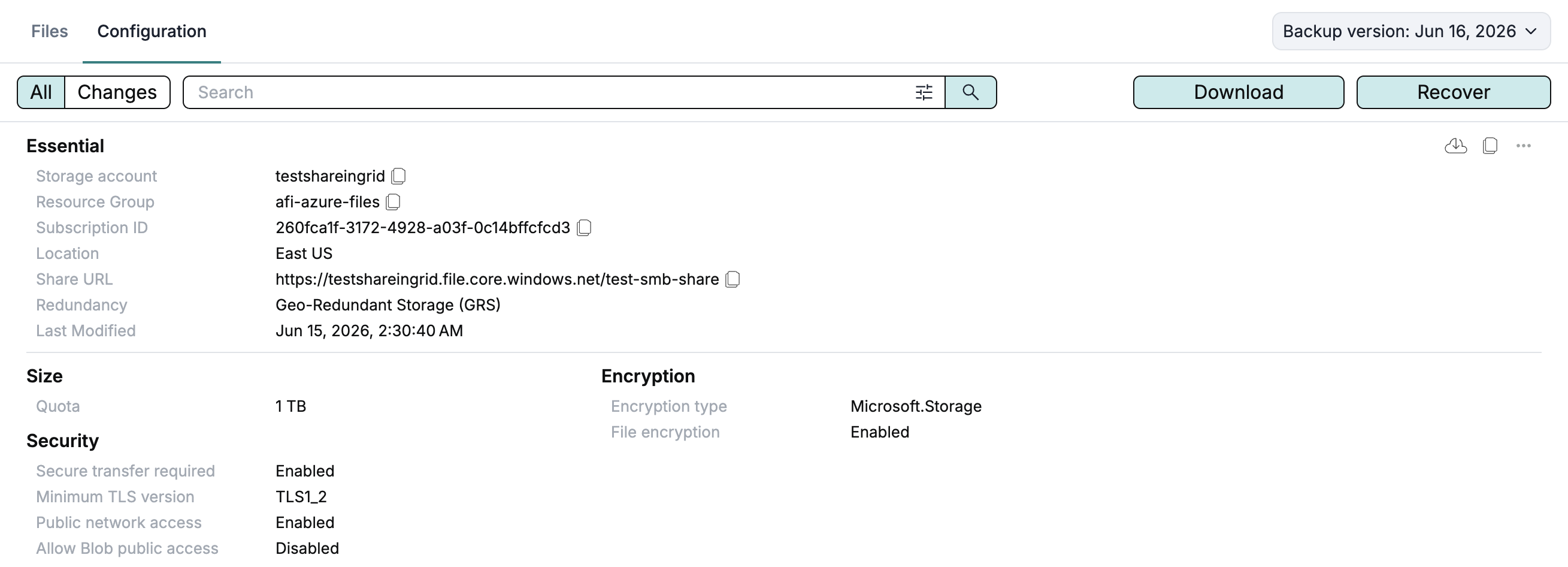
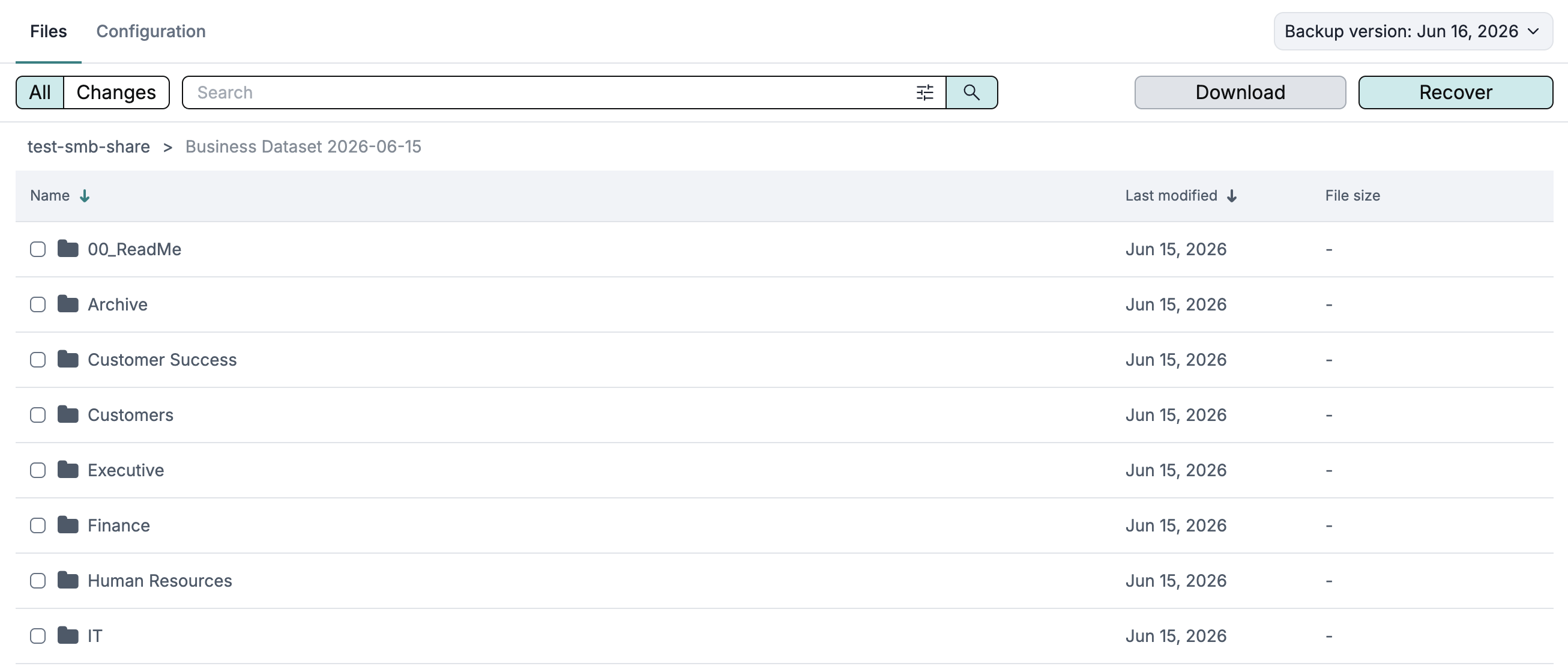
Inside the Azure file share backup, you can browse the storage account and file share configuration as well as file and folder content.
Configuration
Data

Search
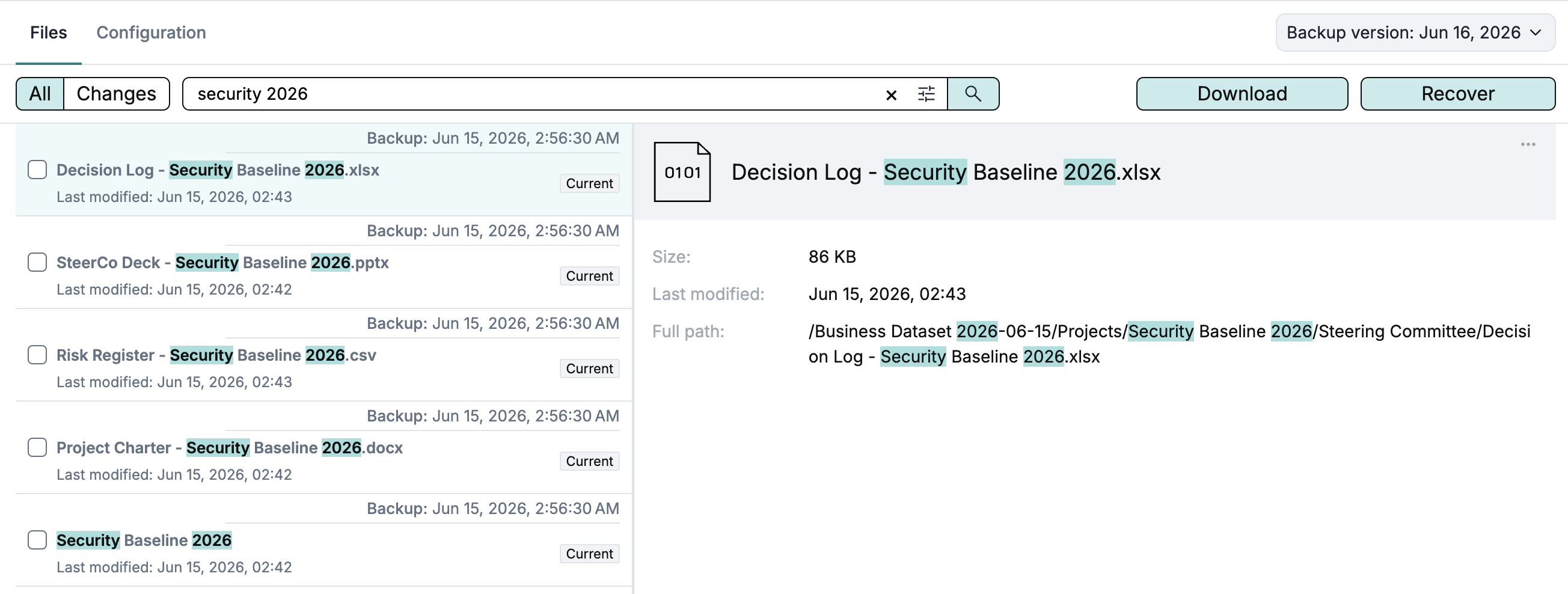
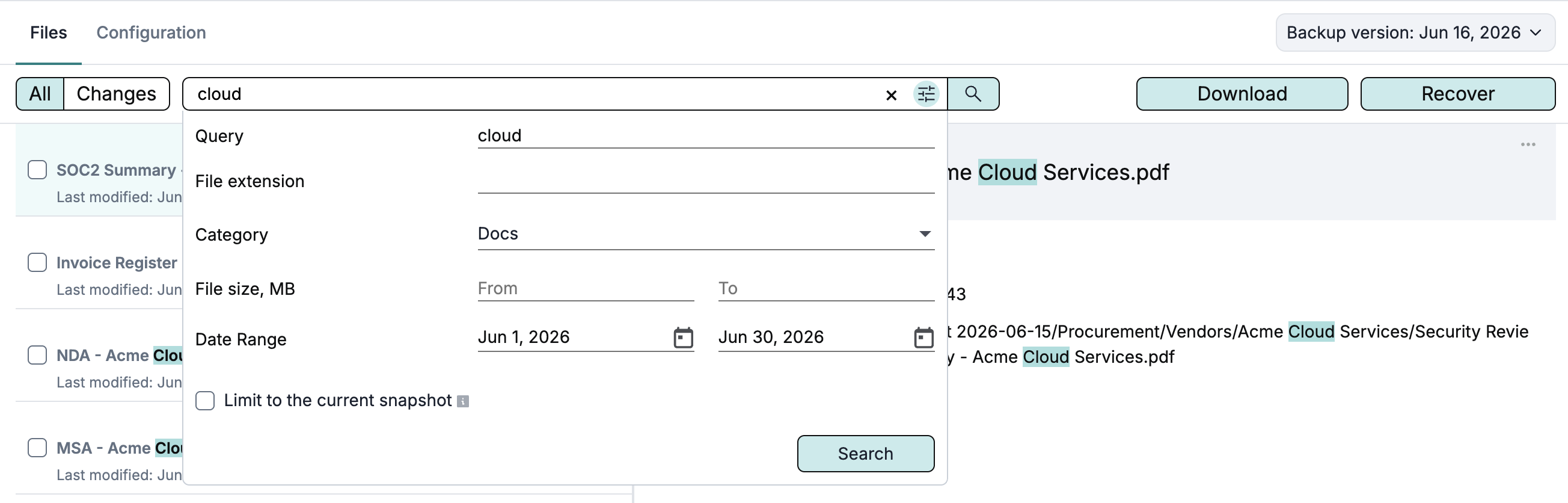
Afi allows users to search in Azure file share backups by file or folder name, partial name, file extension, size, and category, such as documents, pictures, or videos. Users can also limit results to file versions modified within a specified time range.
From the Service → Global search tab, users can search across all file shares in a tenant or across all shares in a selected resource group.
The example below shows a search query with the terms security and 2026, along with several matching files that were returned:
Here is a more advanced example of a search query to find documents with the cloud product in the name that belong to the Docs category, modified between the 1st and 30th Jun 2026:
Export
Configuration
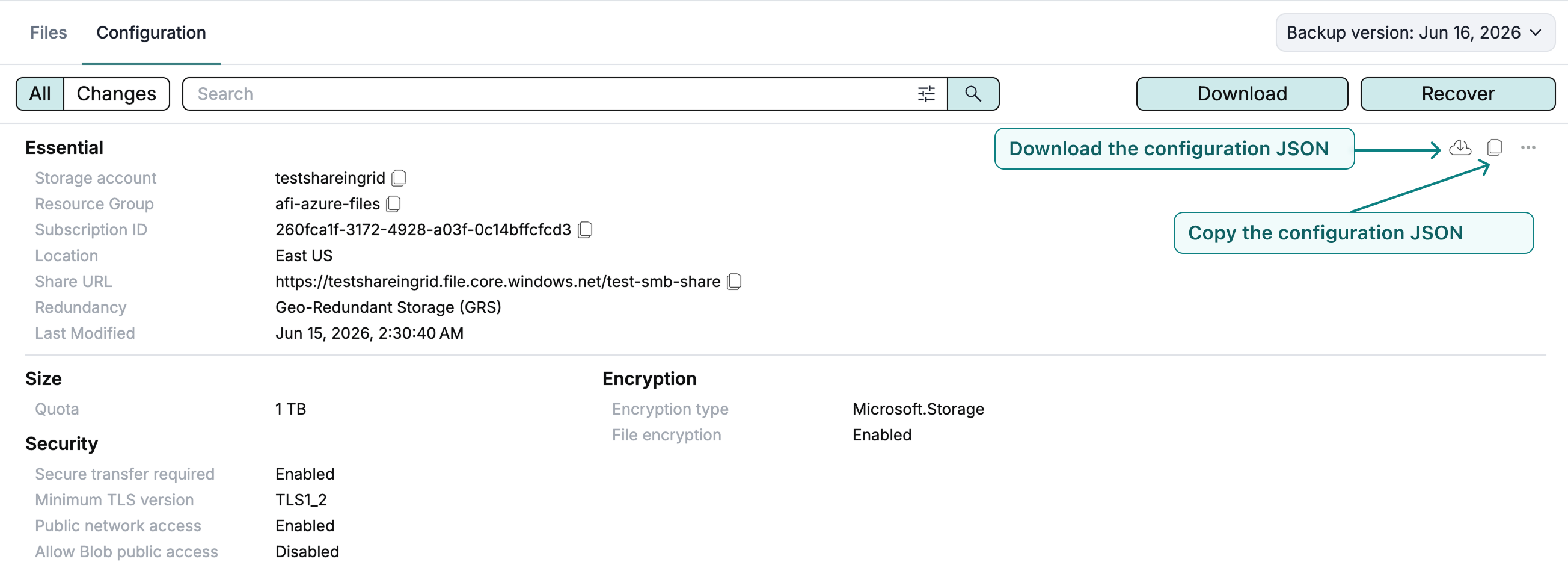
You can copy or download the JSON configuration for the storage account and Azure file share from the backup browse view.
Data
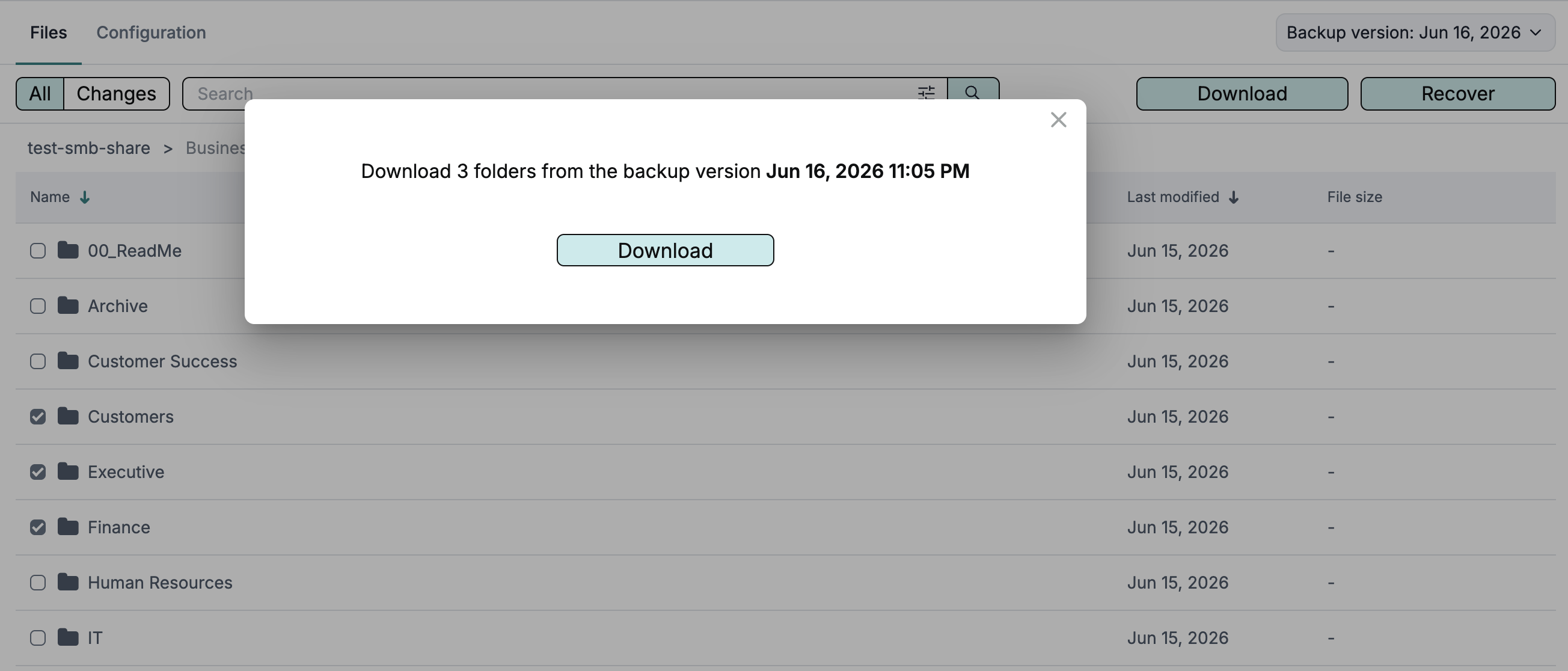
You can download selected files and folders from the Azure file share backup browse view. To do so, select the items and click Download.
Recovery
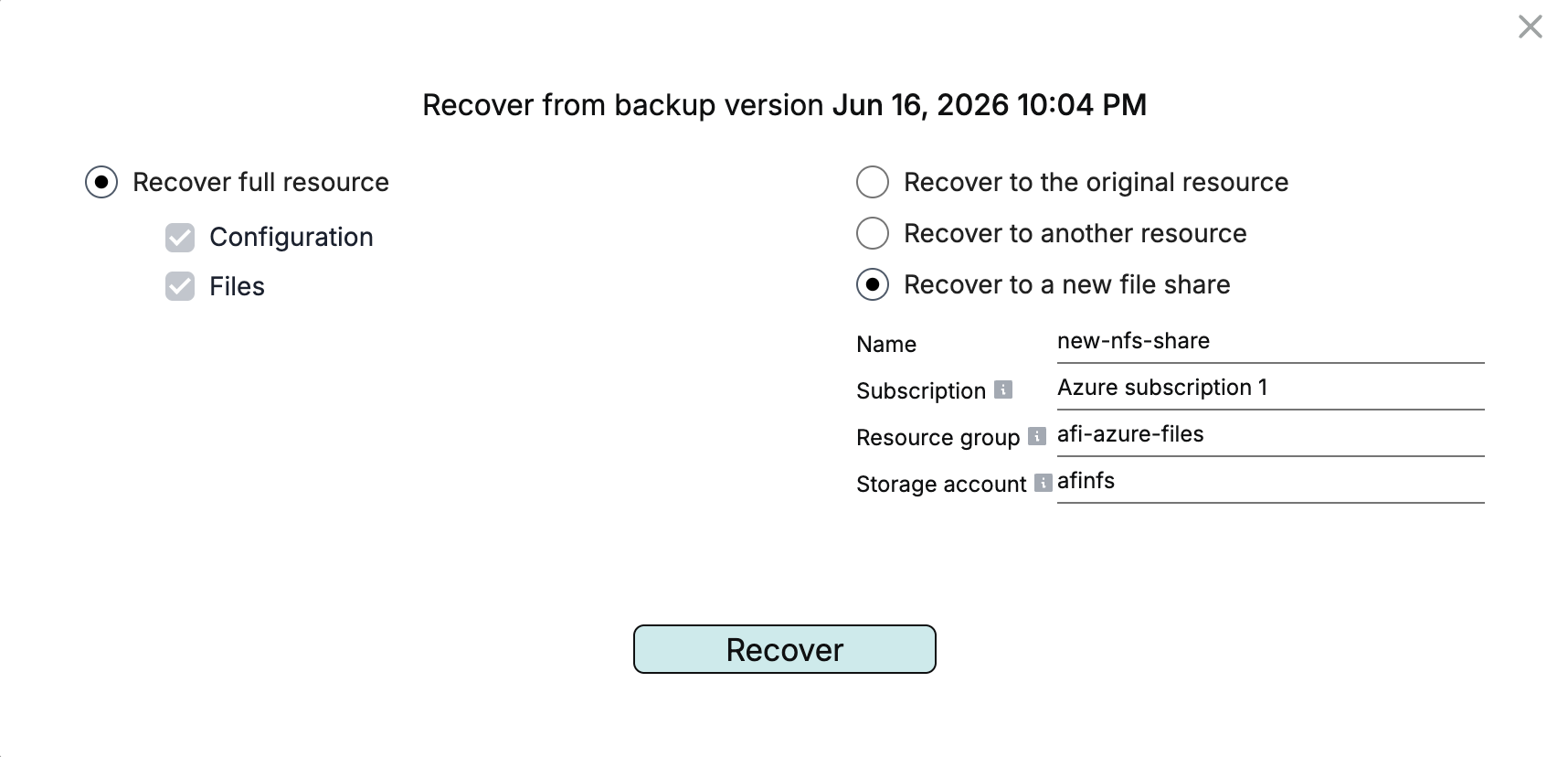
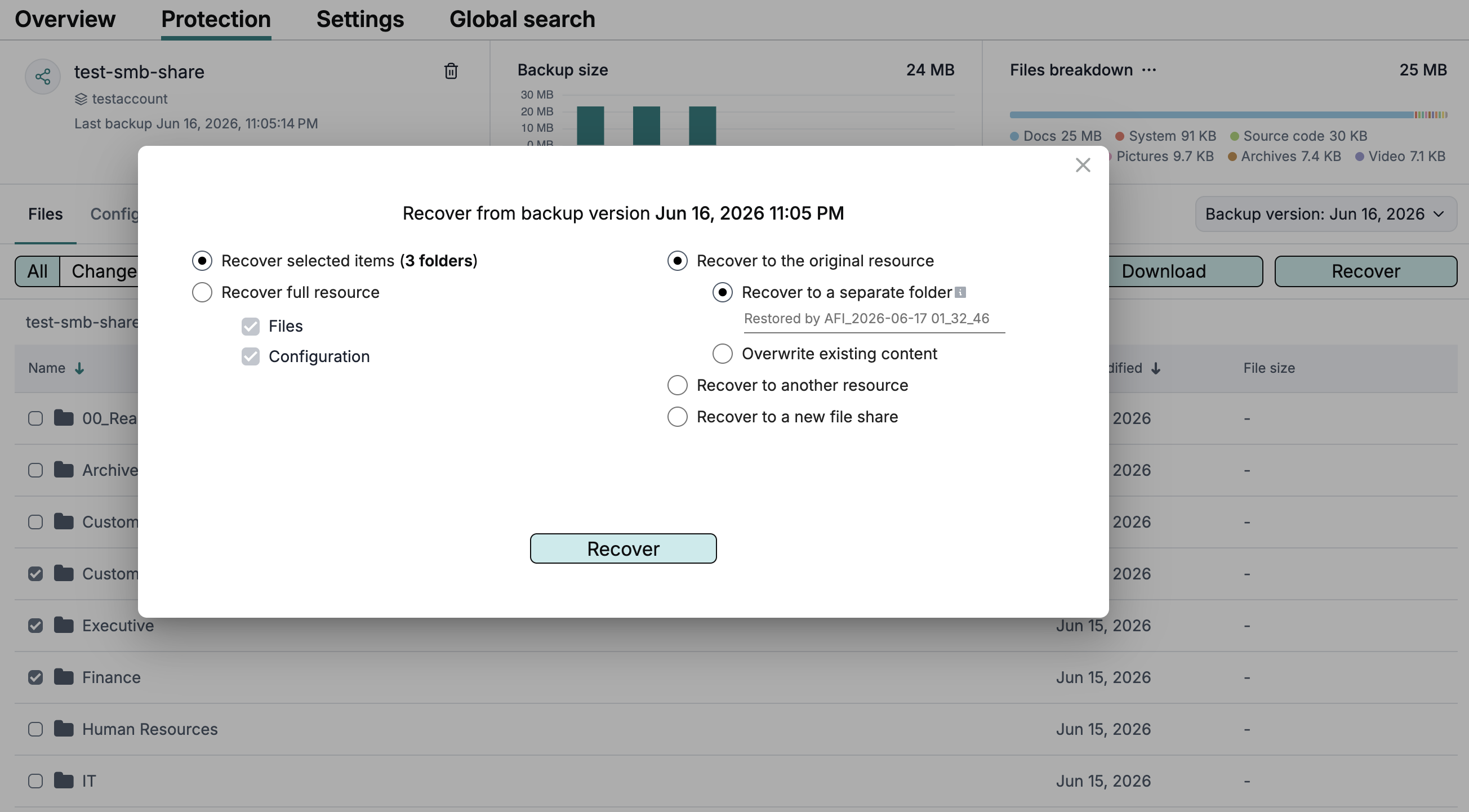
You can restore an Azure file share or selected files and folders from a selected backup snapshot to the same file share, another existing file share, or a new file share.
Recovery to a new share creates the destination share and copies the source share settings, including protocol, quota, access tier, metadata, and root squash settings when applicable. Recovery to an existing share requires the destination share to use the same protocol (SMB or NFS) as the source share.
Afi displays the recovery progress on the Activity → Tasks tab and notifies you via email once the recovery is complete.
Recovery to the same or another existing file share
To recover data to an existing Azure file share, select files and folders to be restored and click Recover in the backup browse view to open the recovery dialog (for entire share recovery, click Recover right away), then select the recovery destination file share.
Recovery to a new file share
To recover data to a new file share:
- Select files or folders in the Azure file share backup browse view and click Recover (or skip selection to recover the entire share).
- Enter a new file share name and select the destination subscription, resource group, and storage account.
- Click Recover to start the recovery.
Info
When you click on Subscription, Resource group, and Storage account fields, Afi automatically displays a searchable list of the corresponding entities available on the Azure side.