Access management
Afi Salesforce backup has a flexible and granular role model that allows you to:
- assign trusted users as Administrators and delegate backup administration to Backup Operators;
- create custom access groups with permissions and scope required for specific tasks;
- grant temporary access for an audit or investigation.
Administrators can grant a limited set of permissions tailored to their security and business needs. For example, the Backup Operators group can manage backup SLA policies and perform recovery operations upon request, while data export remains disabled.
Afi access model
Afi adopts a multi-tenant organizational and access model, allowing you to add and manage multiple tenants (data sources), including Salesforce, Microsoft 365, Google Workspace, and other supported services, under a single Afi account (organization). Access is configured explicitly at the organization and tenant levels. The default tenant access groups, Administrators and Backup Operators, apply to All resources, including the Salesforce organization and its connected sandboxes, while custom access groups can be limited to selected resources, for example, to individual sandboxes.
Organization-wide access is managed on Configuration → Admins and grants access to the organization and its data sources. Per-tenant access is managed on Service → Settings → Access groups.
By default, an Afi organization account is created with a single administrator: the user who set up the account. Organization administrators can be added or removed on the Configuration → Admins tab in the Organization Administrators group and have full access to the organization and all its tenants. Organization-level settings are described in the following article, while this article focuses on tenant-level access settings specific to Salesforce tenants.
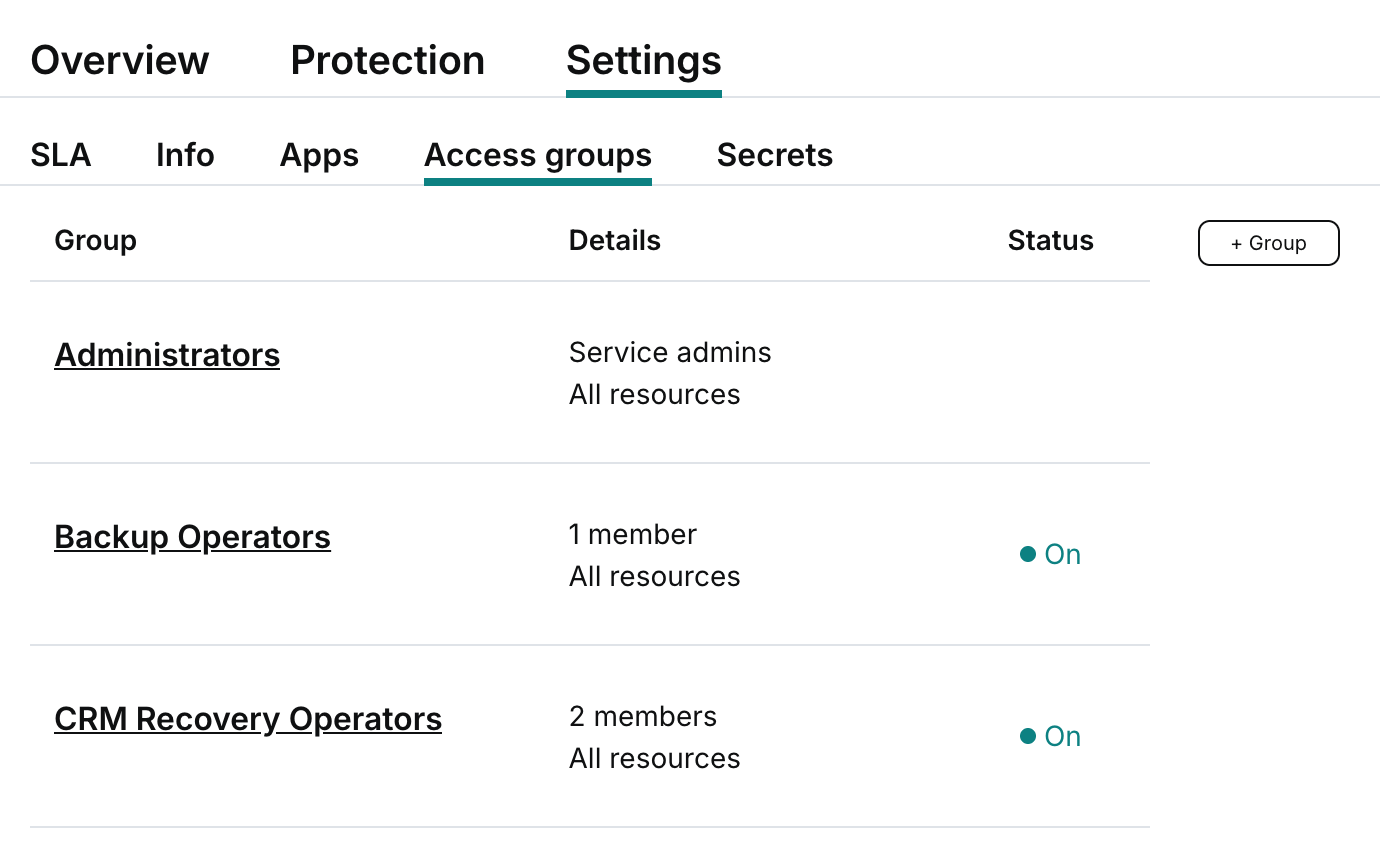
Access groups
How to invite a member to a group?
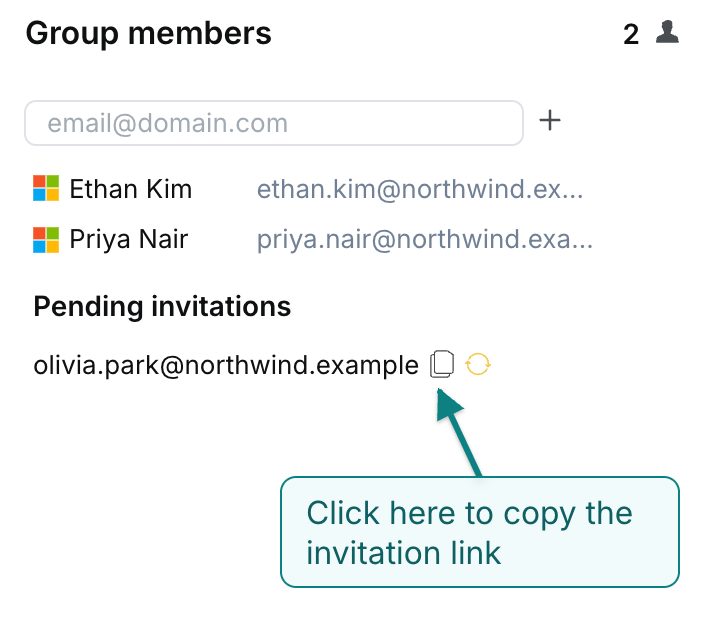
An Afi administrator with access management permission can invite a user to an access group by clicking the group tile, entering the user’s primary email address in the input field under Group members, clicking the + icon, and then clicking Save.
After a user is invited, the Afi service will send an email invitation to this user to join the corresponding access group by the link provided in the email. Each link is valid for 7 days and, once you delete and add a user to this group again, the old invitation link is no longer valid. To join the group, the user should follow the link and log in to the Afi portal with the account specified in the invitation.
Information
Afi relies on Google Workspace and Microsoft 365 SSO for authentication, so you can invite any Google user (personal, business, or education) or Microsoft 365 business user to a Salesforce tenant's access group.
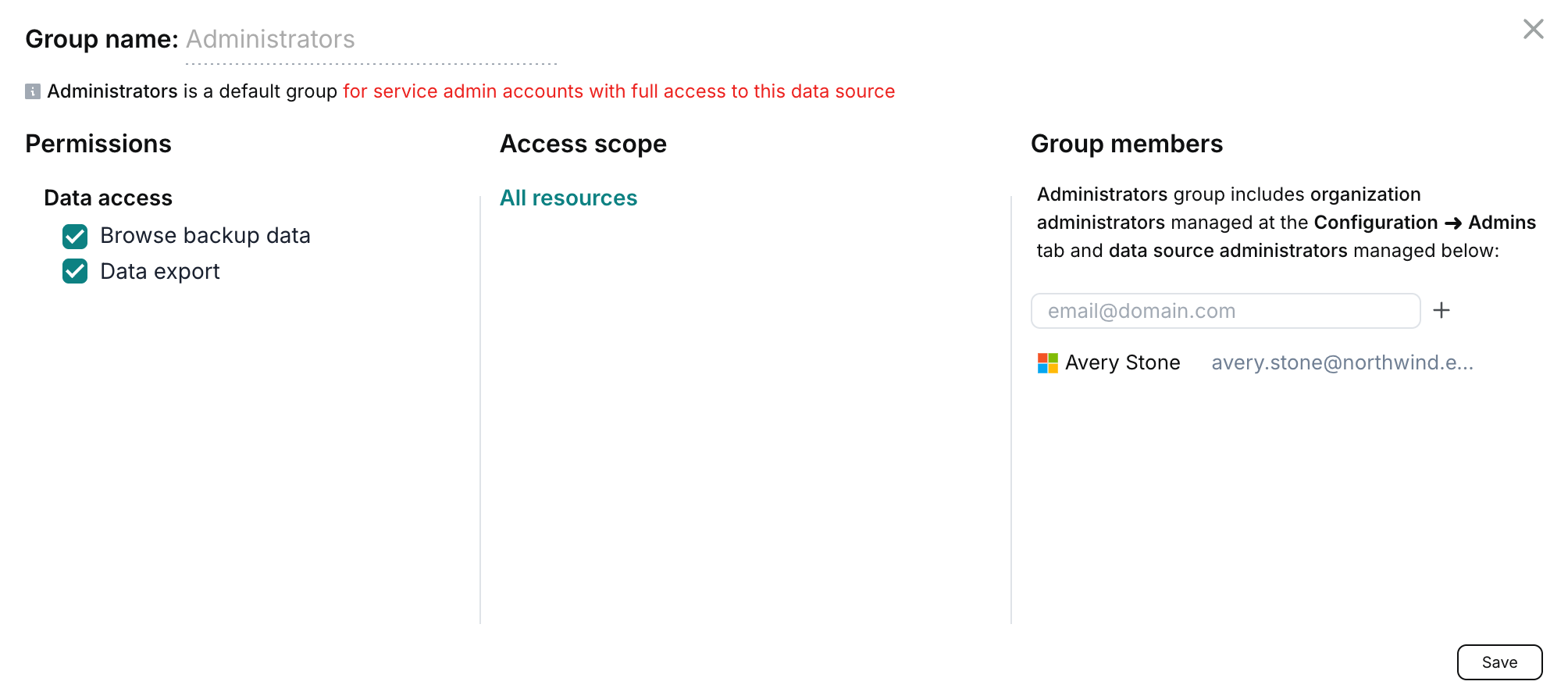
Administrators group
Tenant Administrators have full access to the Salesforce tenant. This role on its own does not grant access to organization-level settings such as licensing, organization access management, or the organization-level Afi audit log.
Information
Organization and tenant administrator access to Salesforce backup data can be restricted entirely by disabling Browse backup data, or partially by disabling Data export in the tenant's Administrators group.
Backup operators group
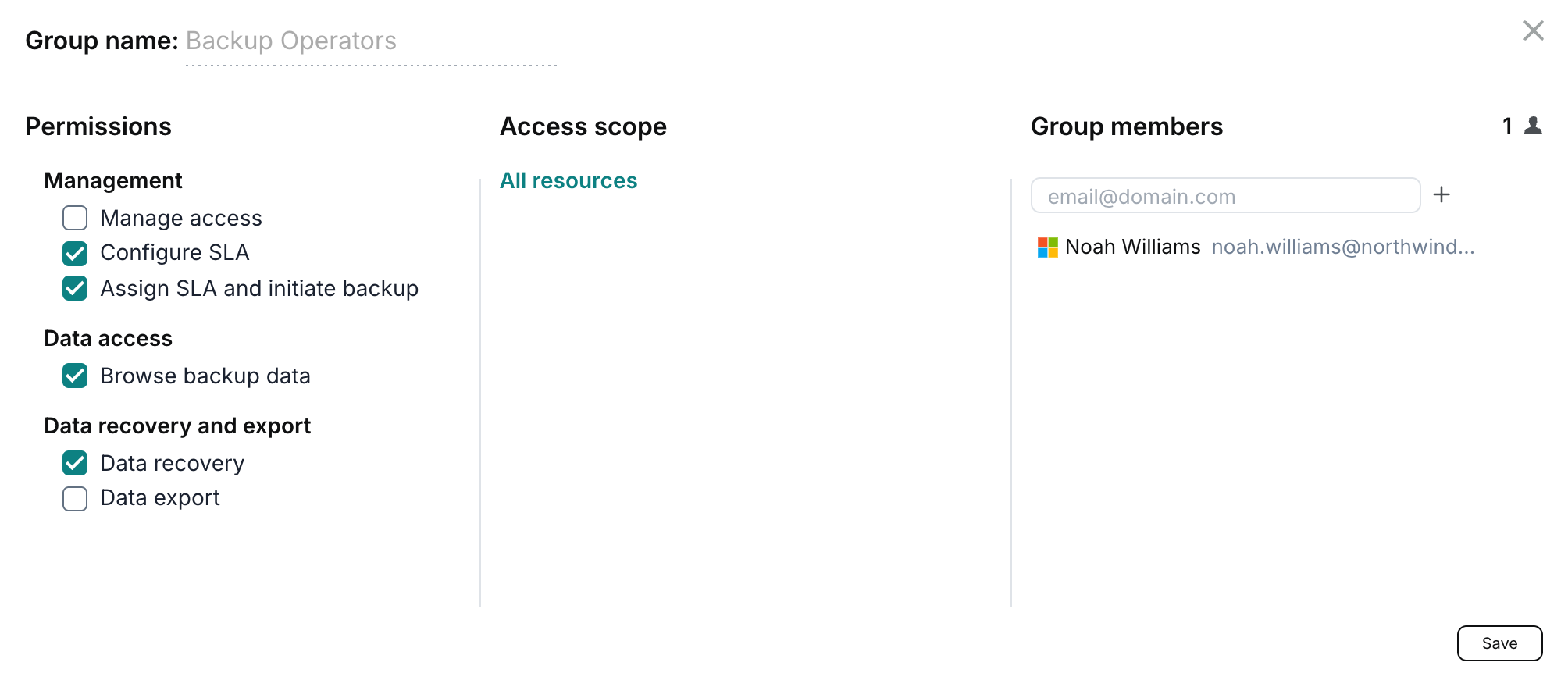
The Backup Operators group is a default access group for each Salesforce tenant. It provides configurable tenant-wide access to backup management, data browsing, recovery, and export.
The example below shows a group with one member who can configure and assign backup SLA policies, start backups, browse backup data, and run recovery.
Custom access groups
Custom access groups let you create additional administrator groups with limited permissions for a Salesforce tenant, either across the whole tenant or for selected resources. Members are invited by email and sign in with their Microsoft 365 or Google accounts. Custom groups can also have a fixed lifetime; by default, they do not expire.
To configure a custom access group:
- Go to Service → Settings → Access groups.
- Click + Group to add a group, or select an existing group to edit it.
- Enter a descriptive Group name.
- Select the Access scope:
- All resources: Grants access to the Salesforce organization and all its connected sandboxes in the tenant.
- Custom: Grants access only to the resources you select. Click + Resource and select the Salesforce organization or sandboxes.
- Configure the permissions to grant to the group members.
- In Group members, enter a member's email address and click +. Repeat for each person you want to invite.
- Optionally configure an Expiration date, then click Save.
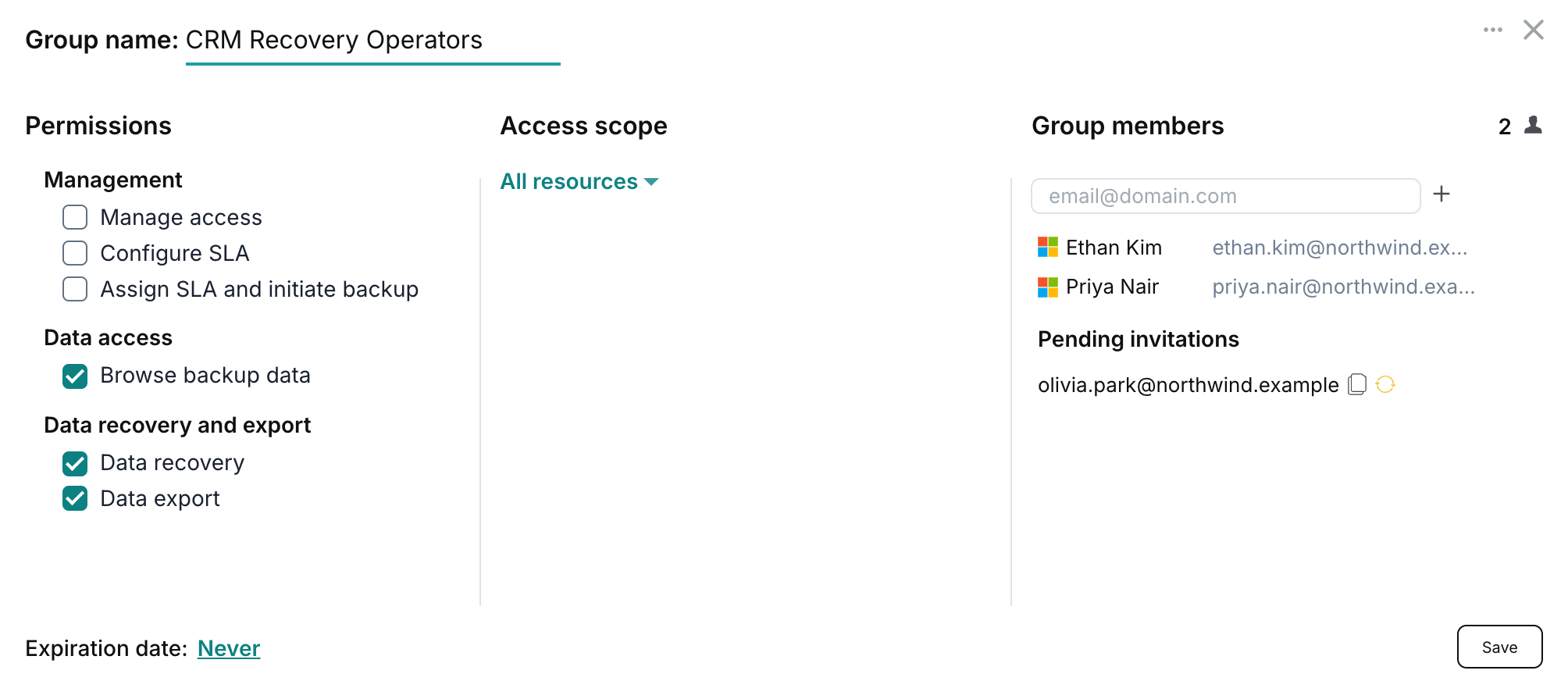
Invitations are sent when the group is saved. Pending invitations appear under Group members until the recipients accept them. The example below grants the CRM Recovery Operators group, scoped to All resources, permission to browse, recover, and export Salesforce backup data.
Access groups with limited lifetime
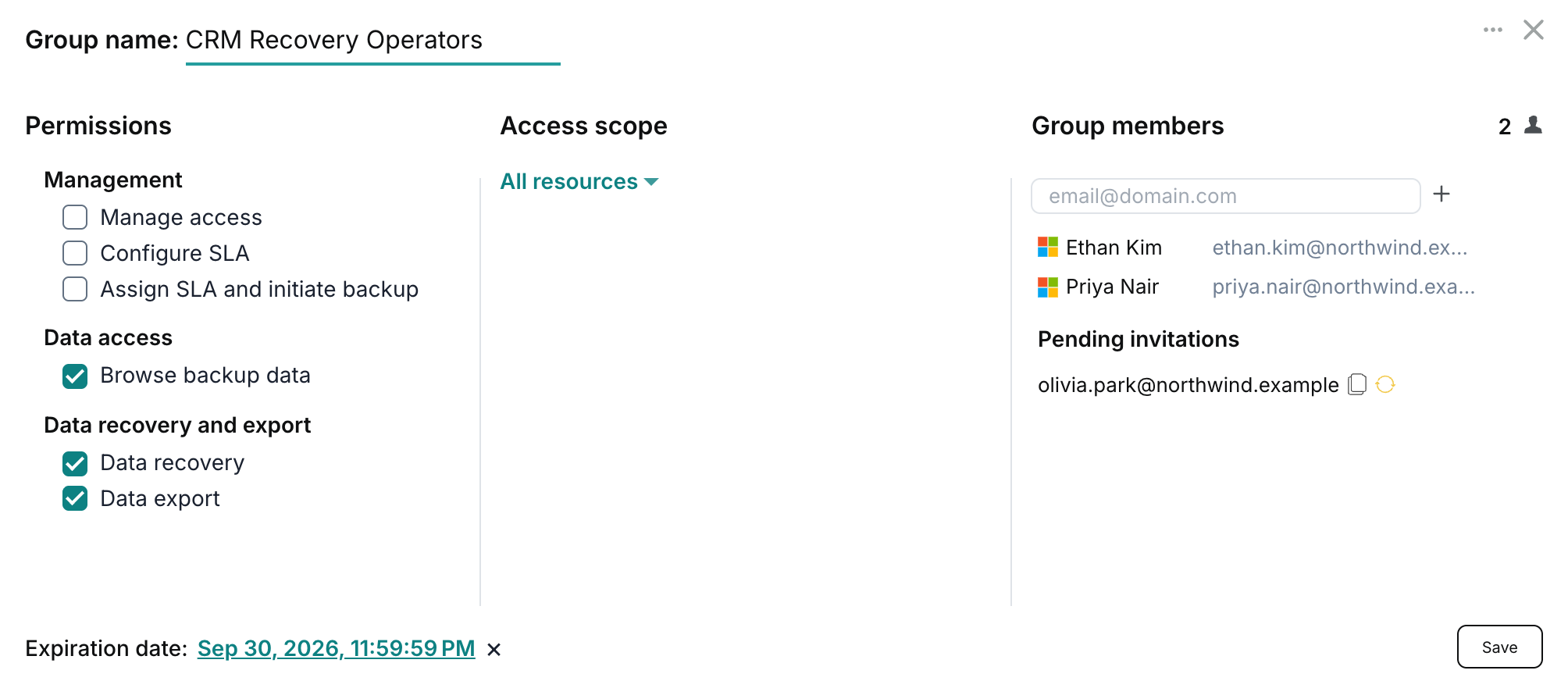
Use a limited lifetime to grant access for a specific period, such as during an audit, investigation, or recovery exercise. Set Expiration date at the bottom of the custom access group dialog and click Save. Access granted through the group ends automatically when it expires. The default setting, Never, leaves the group without an expiration date.
Permissions explained
Access group permissions explained
| Permission | Description |
|---|---|
| Manage access | Any access group member is able to change access settings within the tenant by creating new access groups or editing settings and members for existing ones. |
| Configure SLA | Any access group member is able to create, modify or delete backup SLA policies within the tenant on the Service → Settings → SLA tab. |
| Assign SLA and initiate backup | An access group member is able to assign backup SLA policies to the Salesforce organization and sandboxes within the group's access scope and start backups. |
| Browse backup data | An access group member is able to browse backup data, including SObjects, records, and field values, for all backups within the group's access scope, but can't recover or export the data without additional permissions. |
| Data recovery | An access group member is able to recover backup data to its original Salesforce organization or sandbox, or to another connected one. |
| Data export | An access group member is able to download backup data, including full backups or selected SObjects and records, from all backups in the group's access scope. |