AWS SQL Server databases
Afi provides comprehensive backup and recovery support for Amazon RDS for SQL Server, including online preview and export of database data and metadata.
Browse
An AWS SQL Server instance backup includes the user databases that reside on that instance, and you can browse configuration, schema, and table data for each database.
Information
SQL Server system databases and the AWS-managed rdsadmin database are excluded from backup.
Configuration
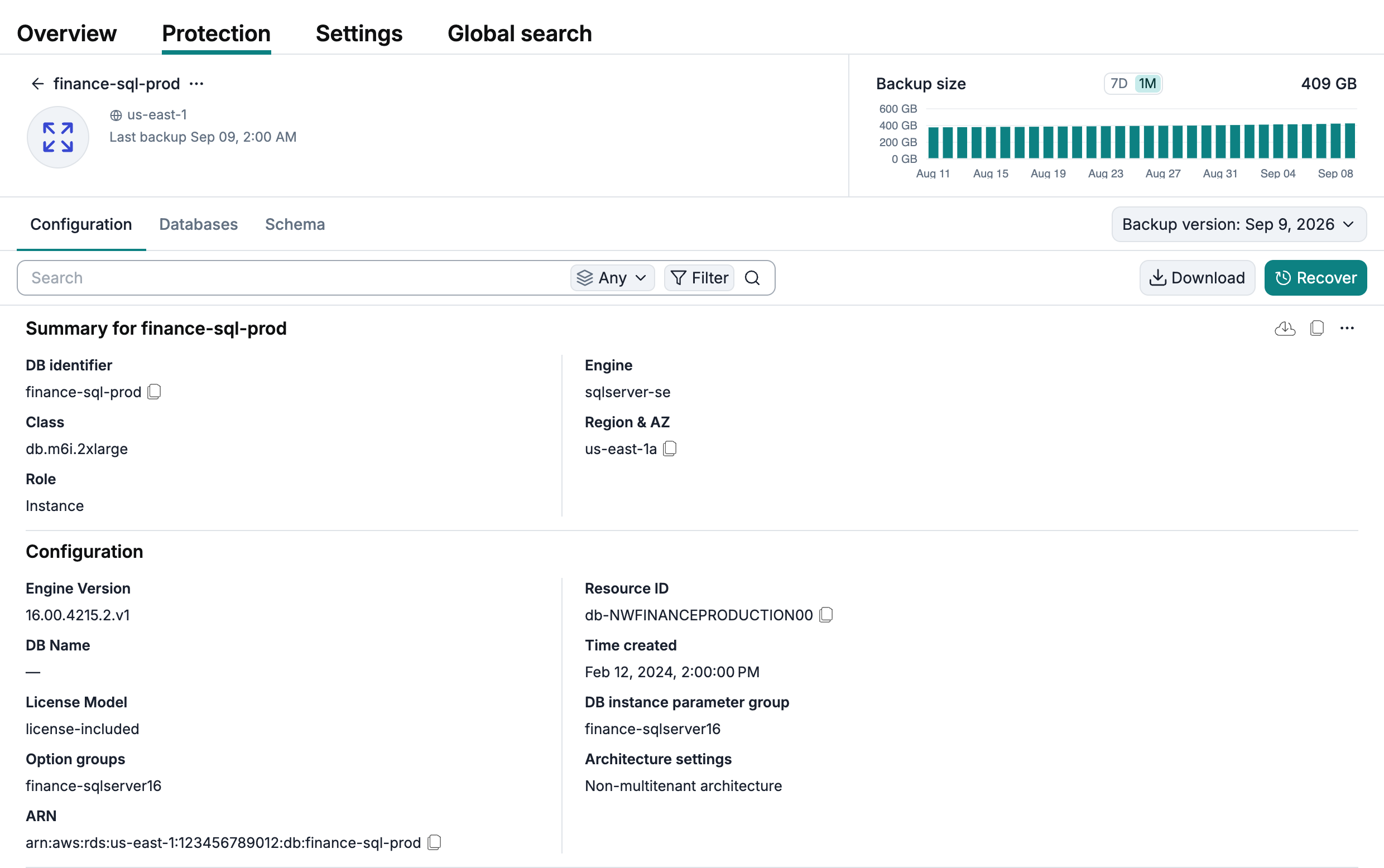
On the Configuration tab inside the backup browse view, Afi shows the SQL Server instance configuration captured in the selected backup snapshot.
Databases
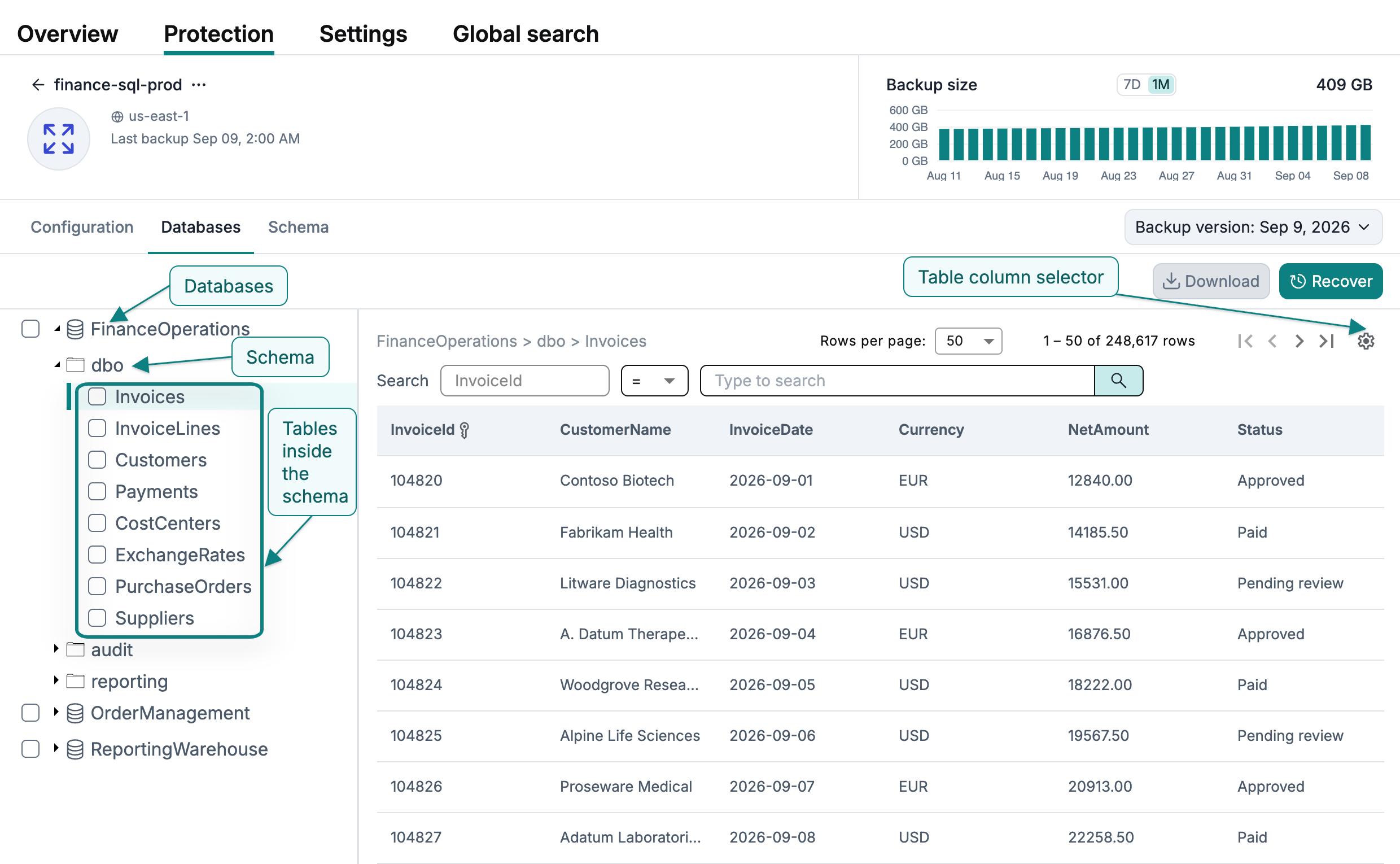
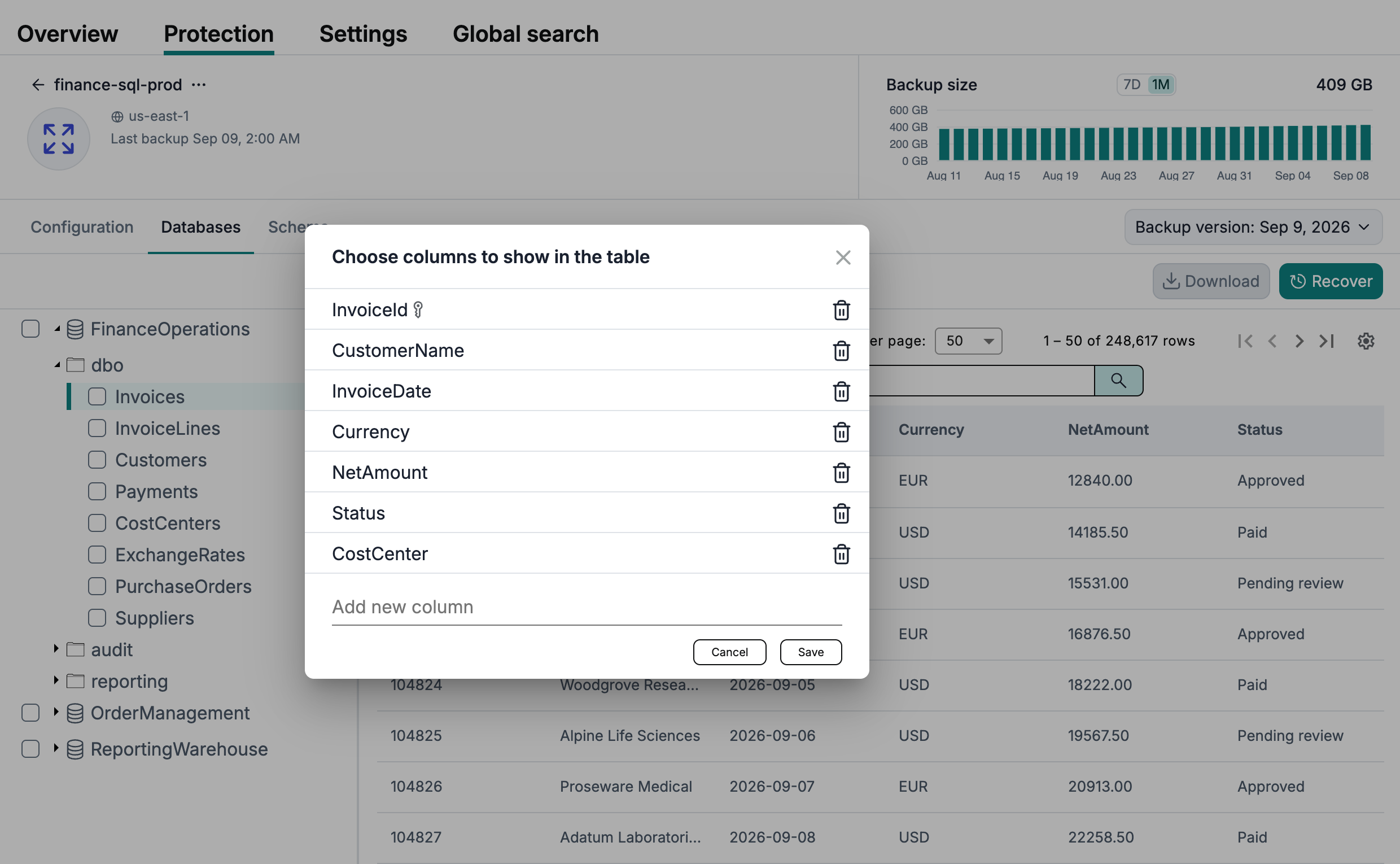
On the Databases tab, you can preview table data by selecting the database, schema, and table in the tree on the left. Use the controls above the table to move between pages, set the page size, and choose which columns are displayed.
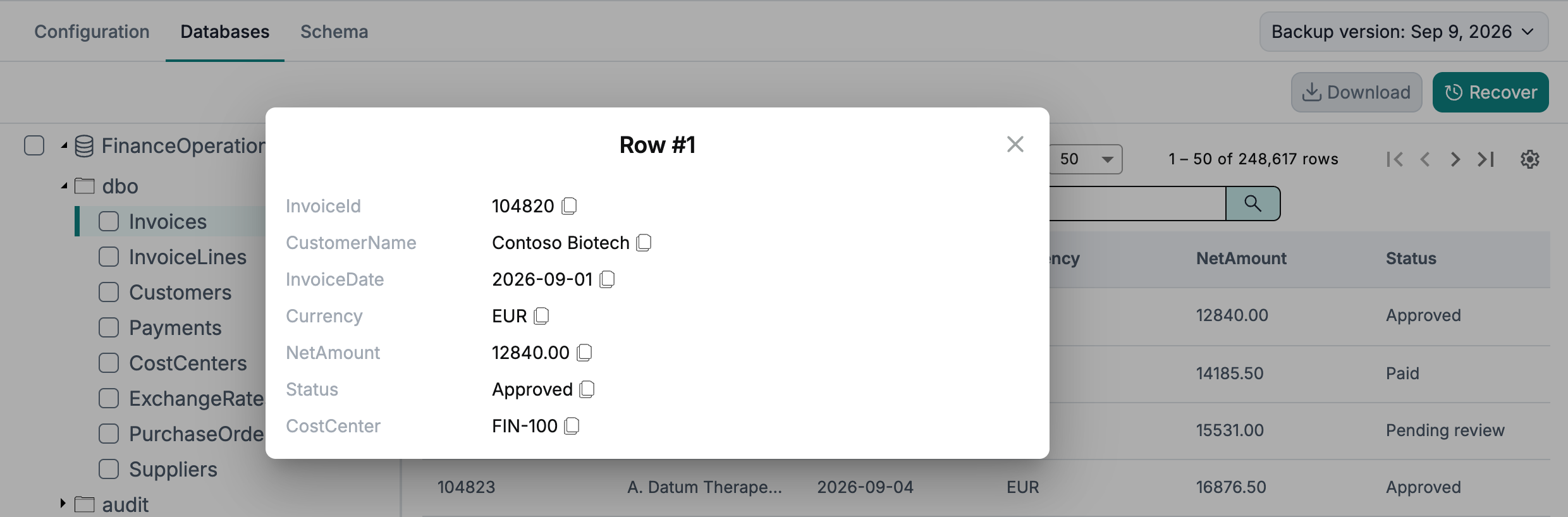
To view the cell values for a specific row together, click that row in the table:
Restrict table content preview
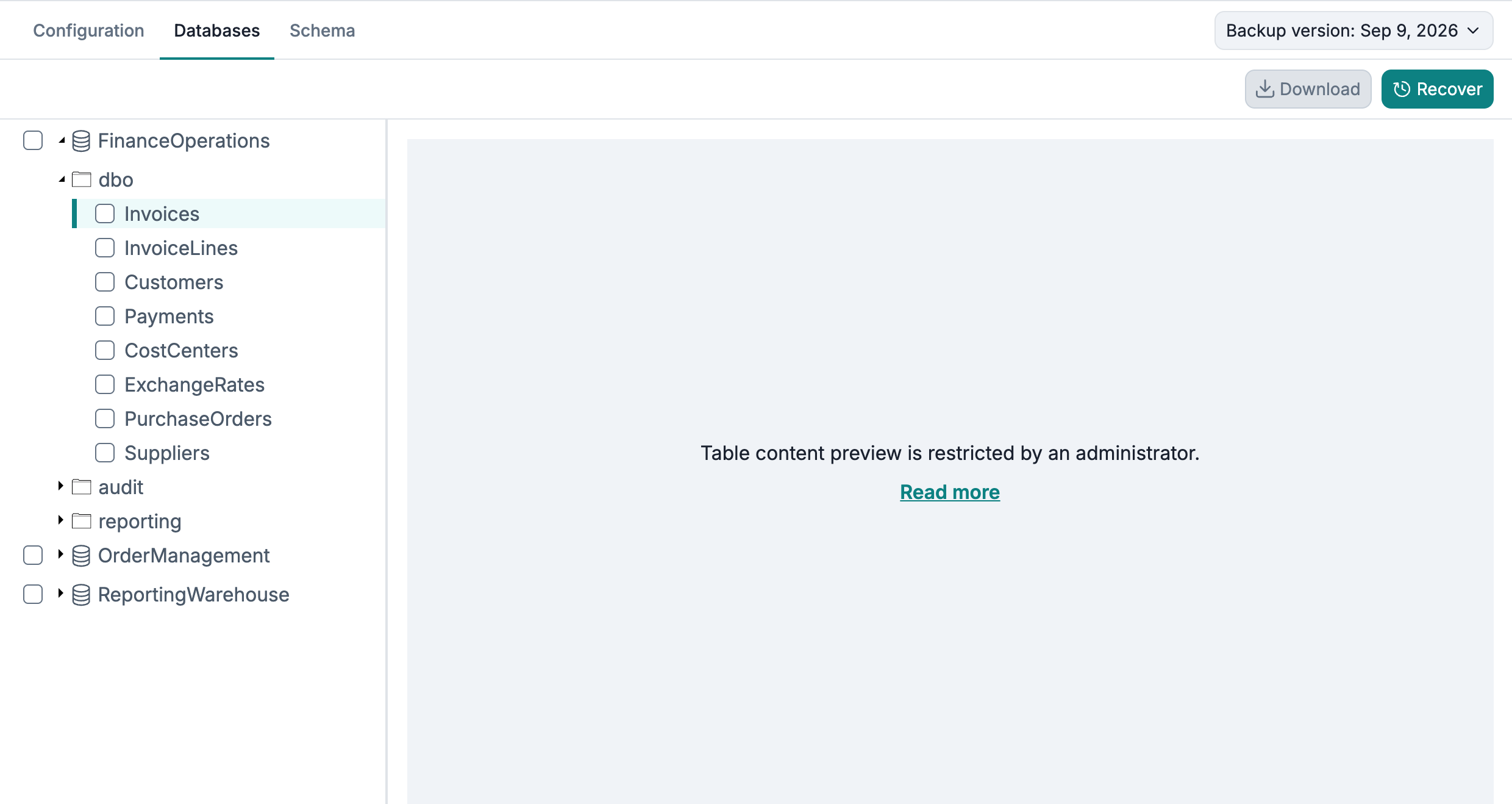
You can restrict access to database table data for service administrators or access group operators on the Service → Settings → Access groups tab by disabling the Preview content access permission. Here is an example of table browse view when content preview is restricted:
Schema
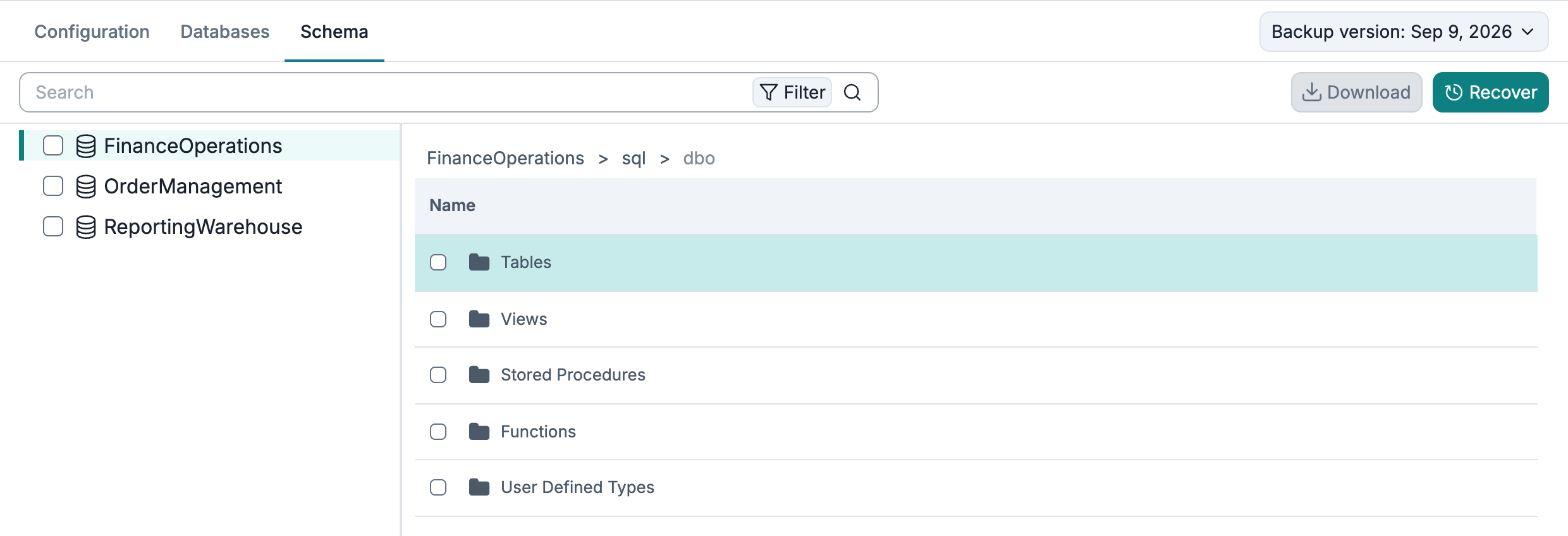
Afi saves the database schema as part of the backup, allowing you to browse it as a collection of SQL scripts that describe tables, constraints, views, functions/procedures, and more.
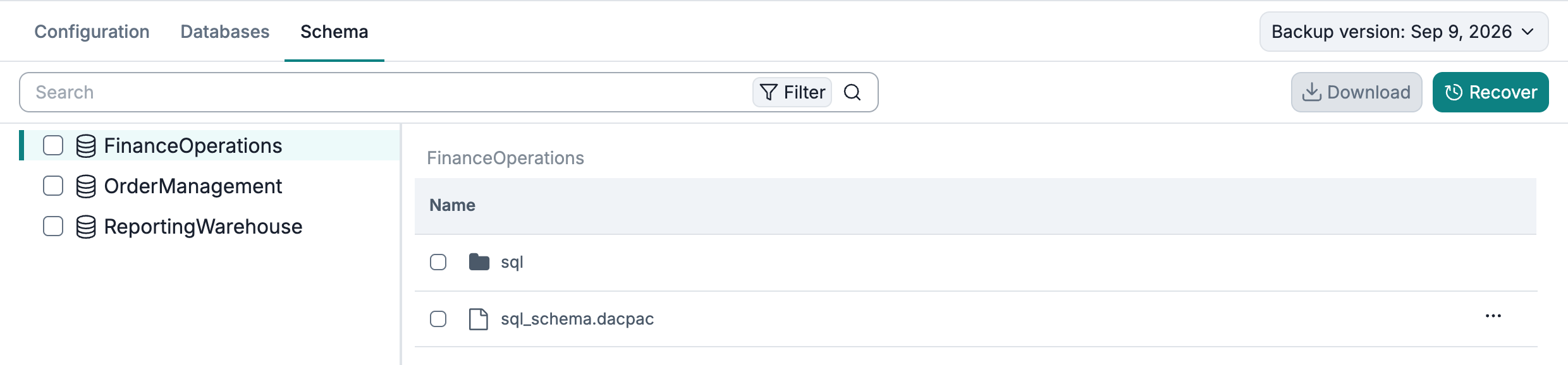
At the root of the schema browse view for a database, sql_schema.dacpac contains the database schema package, and the sql folder contains readable SQL scripts organized by schema and object type. The DACPAC describes the database structure; table data is available separately on the Databases tab.
Preview SQL script content
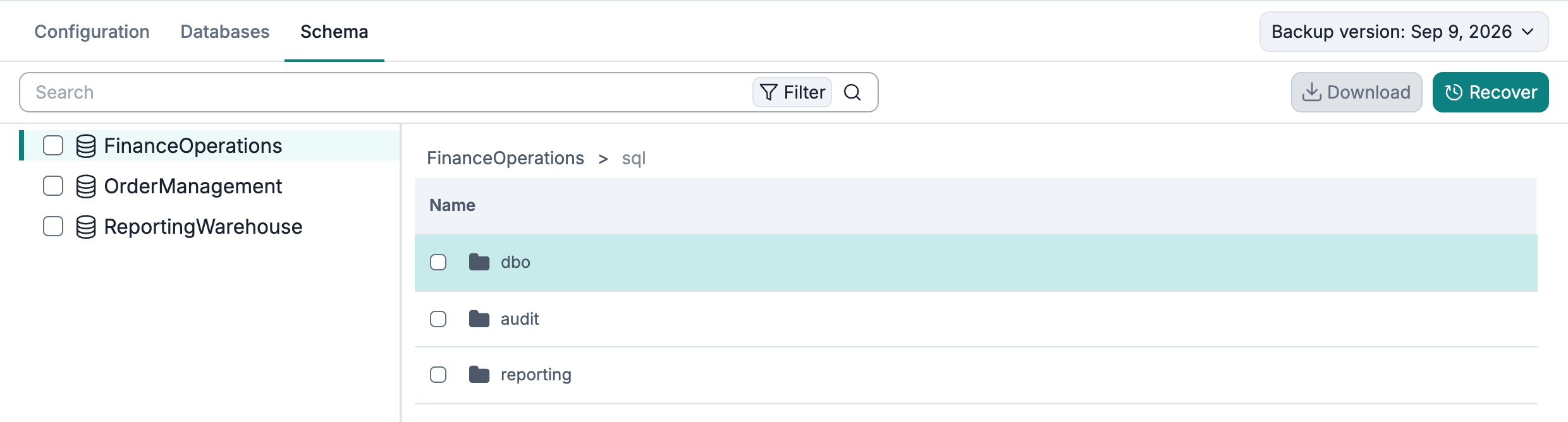
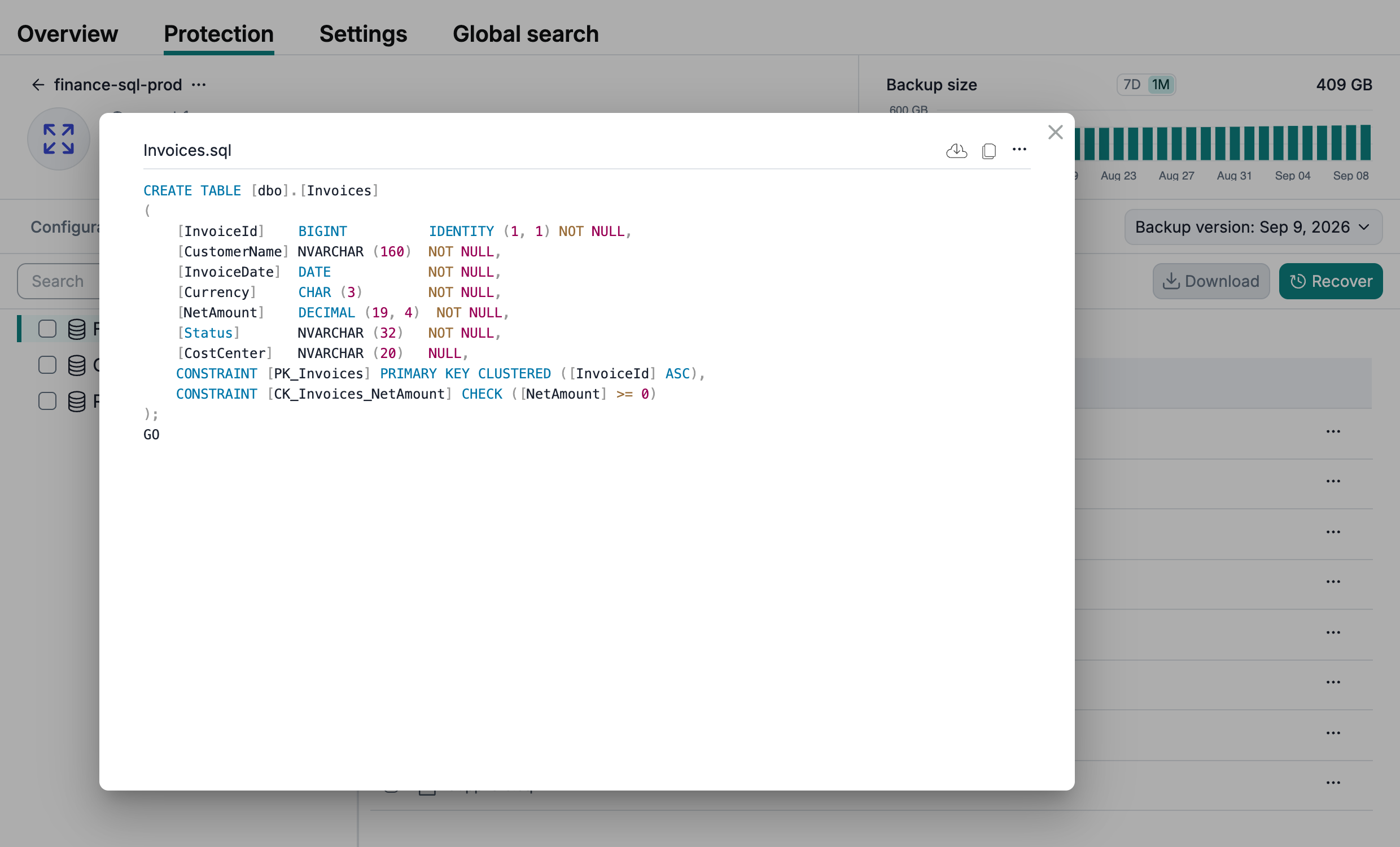
To preview the SQL script content, click the corresponding row:
View SQL script versions
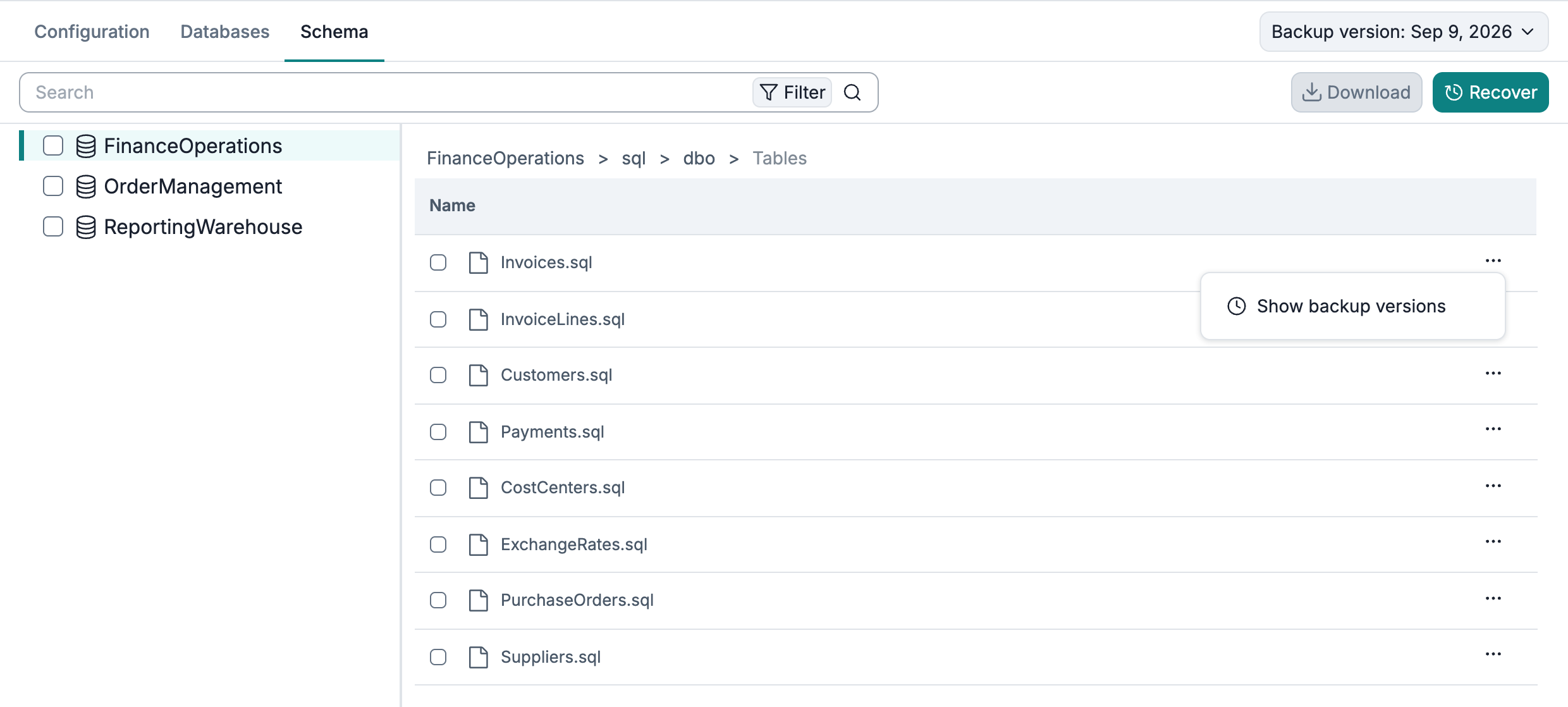
To view all versions of an SQL script stored by the service, click the three-dot icon in the corresponding row and select Show backup versions. A dialog will appear, listing each script version along with the backup snapshot times in which each version exists.
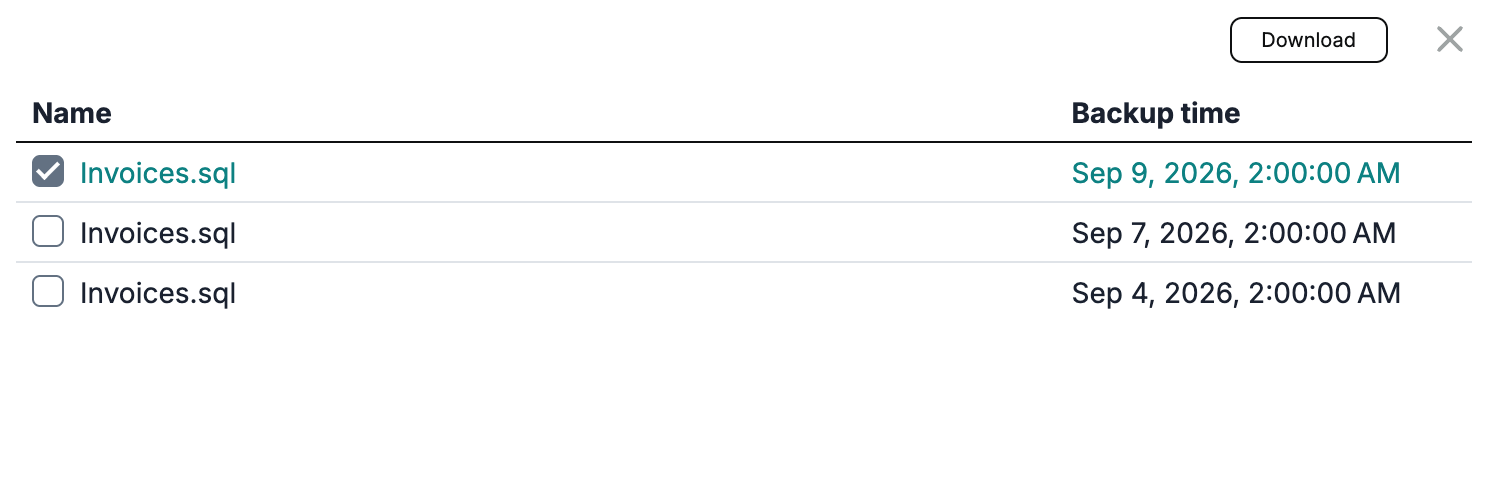
You can select and download any of the listed versions:
Search
Table data
To make navigating large tables easier, Afi lets you search backed-up table data by primary key value. Supported operations are =, >, >=, <, <=, and [], where [] matches values within an inclusive range. For a uniqueidentifier primary key, only equality (=) is available. Use the pagination controls above the table to browse the rows matching your search.
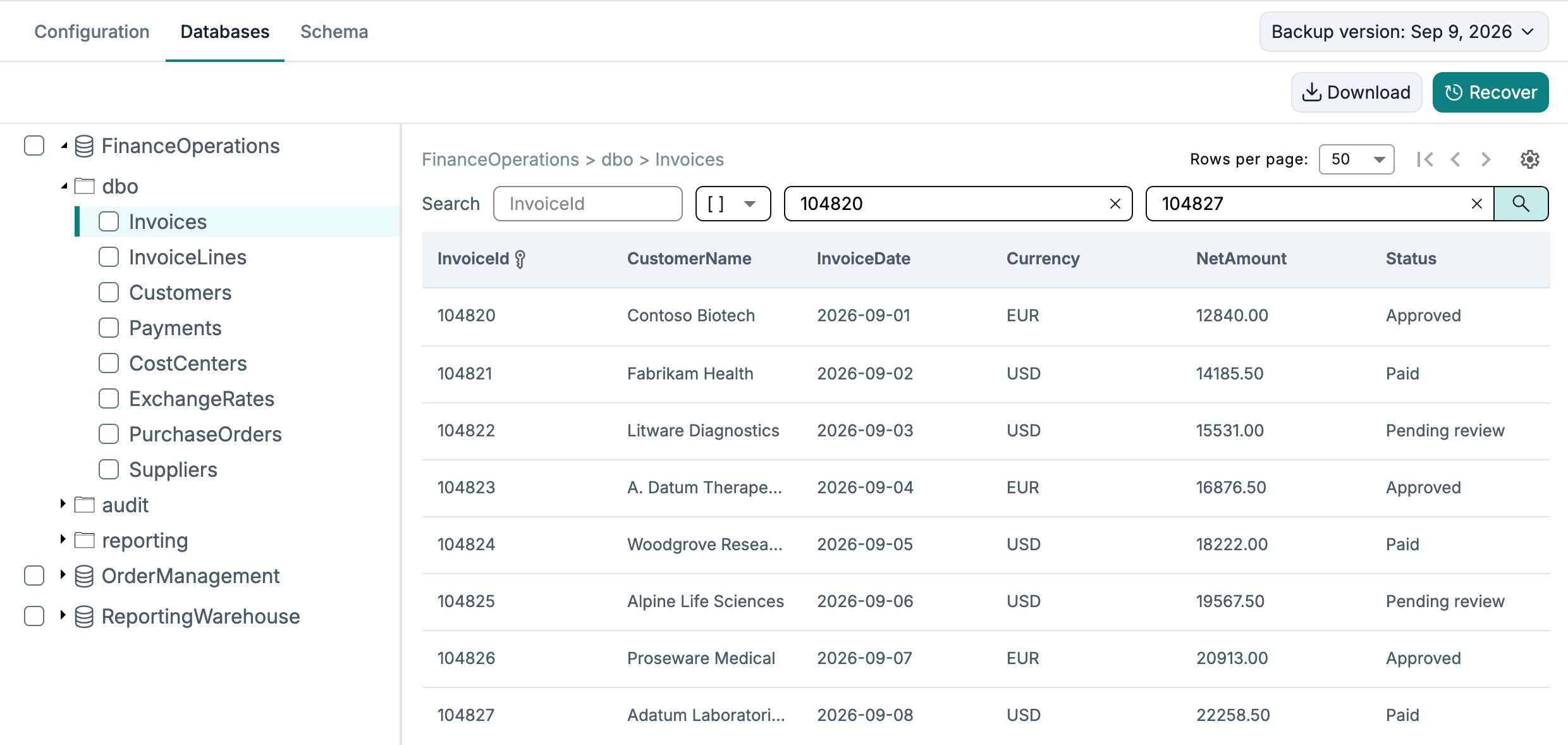
Search is available when:
- The table has a primary key.
- The first column of the primary key uses one of the supported data types listed below.
For tables with a composite primary key, the search uses the first primary-key column only.
Data types supported for searching
| Data type kind | Data types |
|---|---|
| String | char, varchar, nchar, nvarchar, sysname |
| Integer | tinyint, smallint, int, bigint |
| Floating and decimal | real, float, decimal, numeric, money, smallmoney |
| Temporal | date, time, datetime, datetime2, datetimeoffset, smalldatetime |
| Identifier | uniqueidentifier (equality only) |
Exporting search results
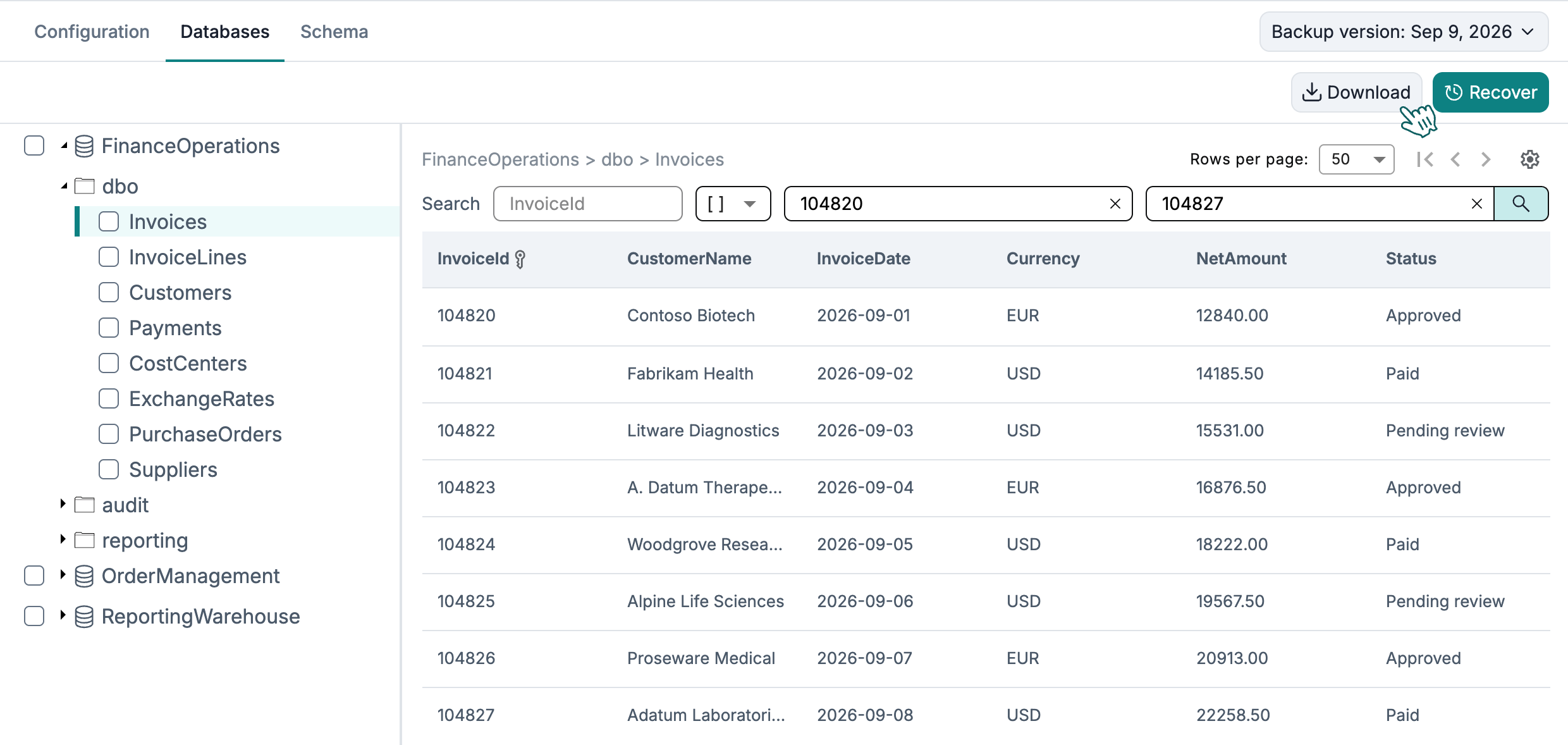
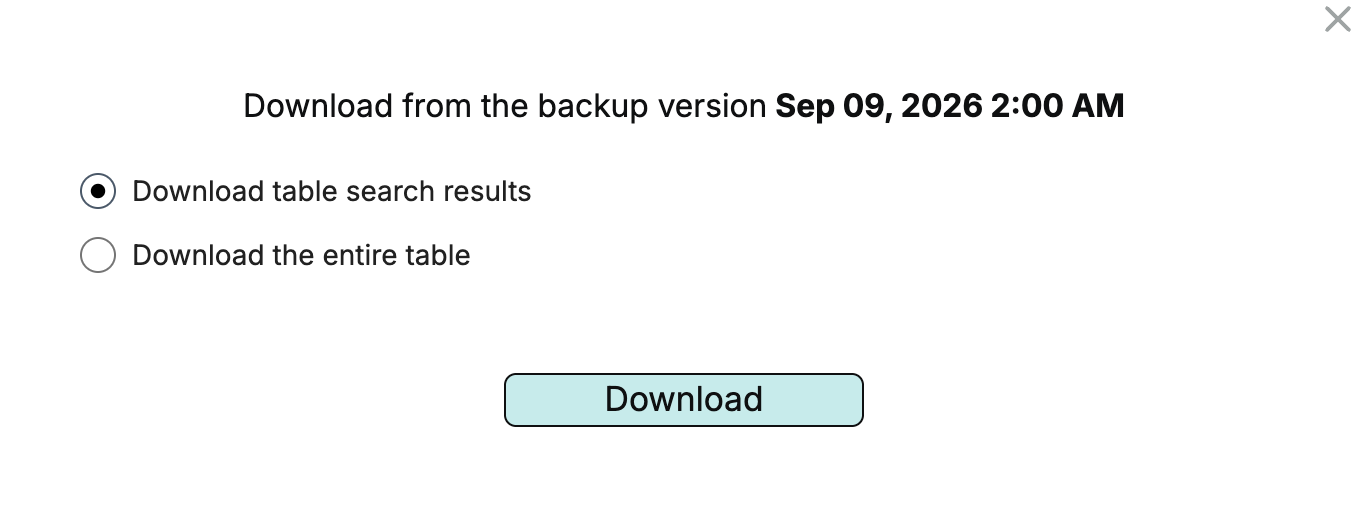
You can export all table rows matching a search query to a CSV file. To do this, run a search query, click Download, ensure that Download table search results is selected, and then start the export.
Schema
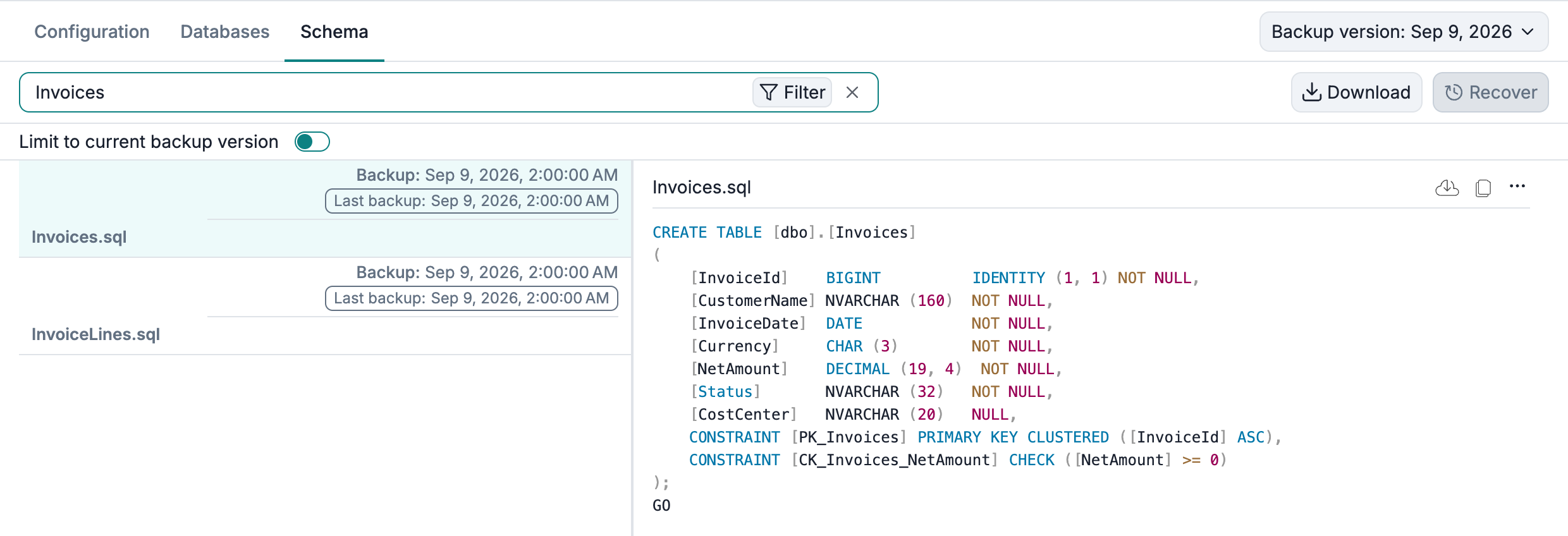
Afi allows you to search across SQL scripts backed up as a part of the database schema by a keyword. The following example shows a search query to find all SQL scripts matched by the Invoices keyword:
Export
Configuration
You can copy or download a JSON file with the AWS configuration of the SQL Server instance from the backup browse view.
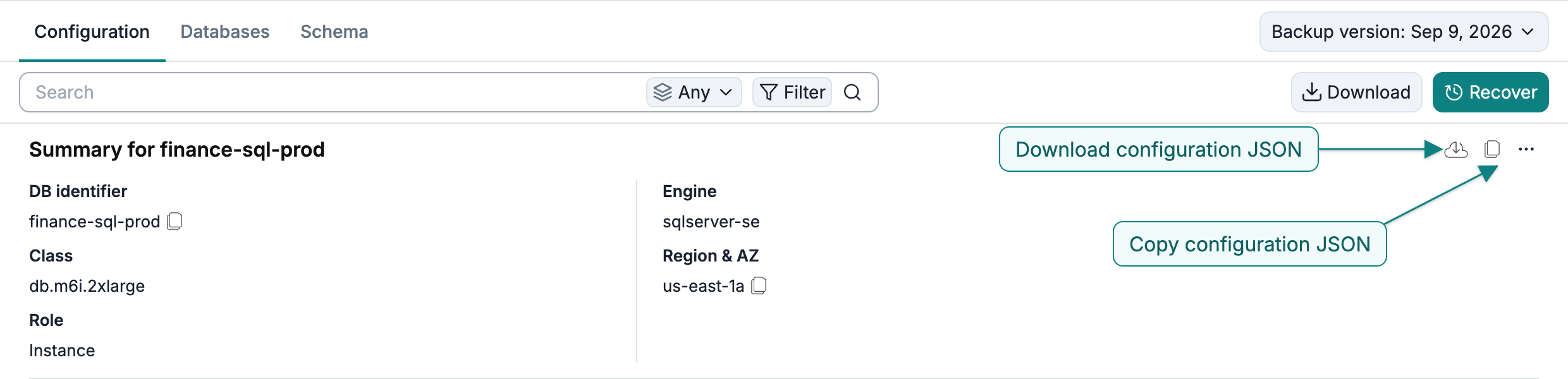
Table data
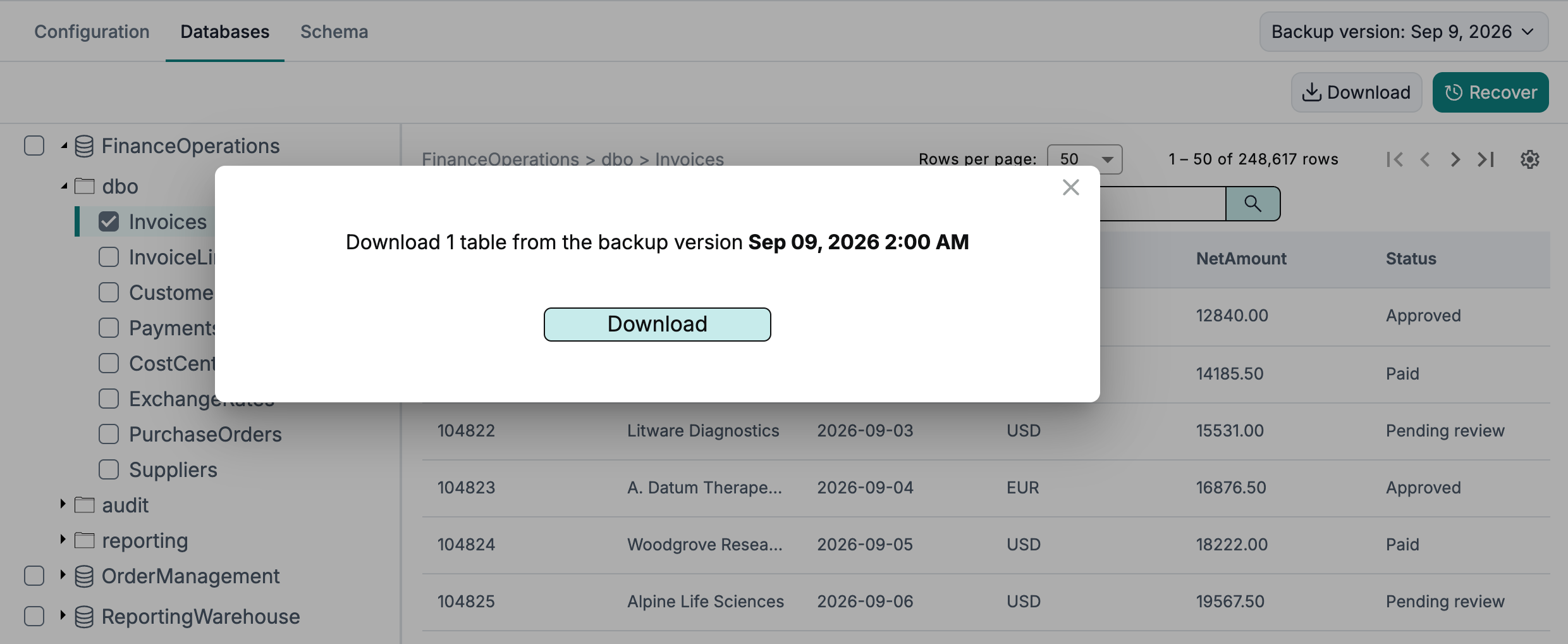
To download table data as CSV files, select one or more tables in the database tree, click Download, and confirm the download in the dialog.
Information
Binary values are replaced with a %BINARY_DATA% placeholder in the CSV export. This export limitation does not affect database or table recovery.
Schema
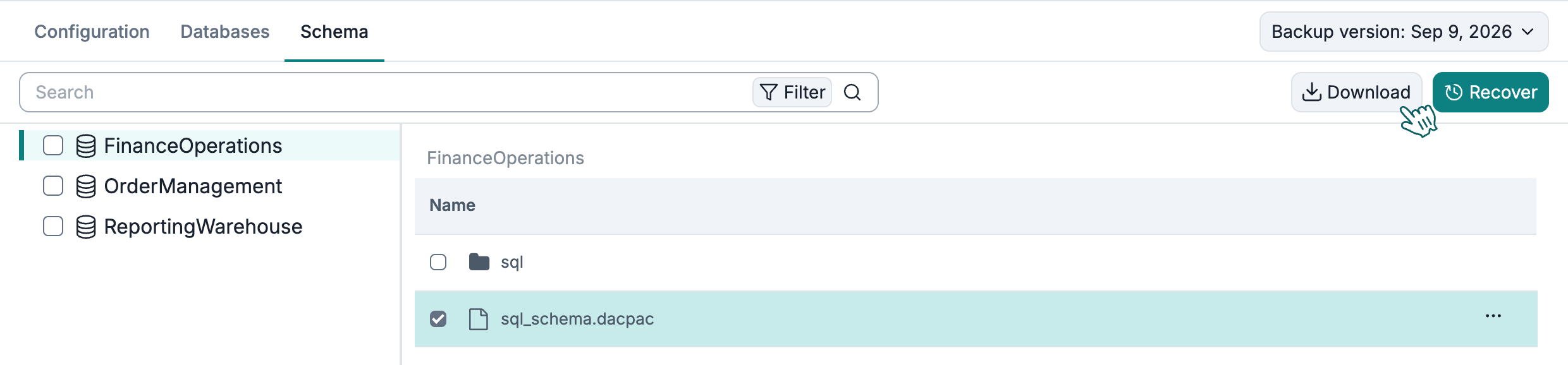
You can download the DACPAC schema package, individual SQL scripts, or entire script folders by selecting them in the backup browse view and clicking Download:
Recovery
You can restore a database from a backup snapshot into a new database on a selected RDS for SQL Server instance, or restore selected tables. Full database recovery restores the complete backed-up schema and data, including indexes, constraints, views, functions, procedures, and triggers.
Choose a destination SQL Server instance with a compatible version and edition and enough capacity for the restored data. Before starting recovery, enable Publicly accessible for the destination in AWS by following these steps.
Database
To recover a database:
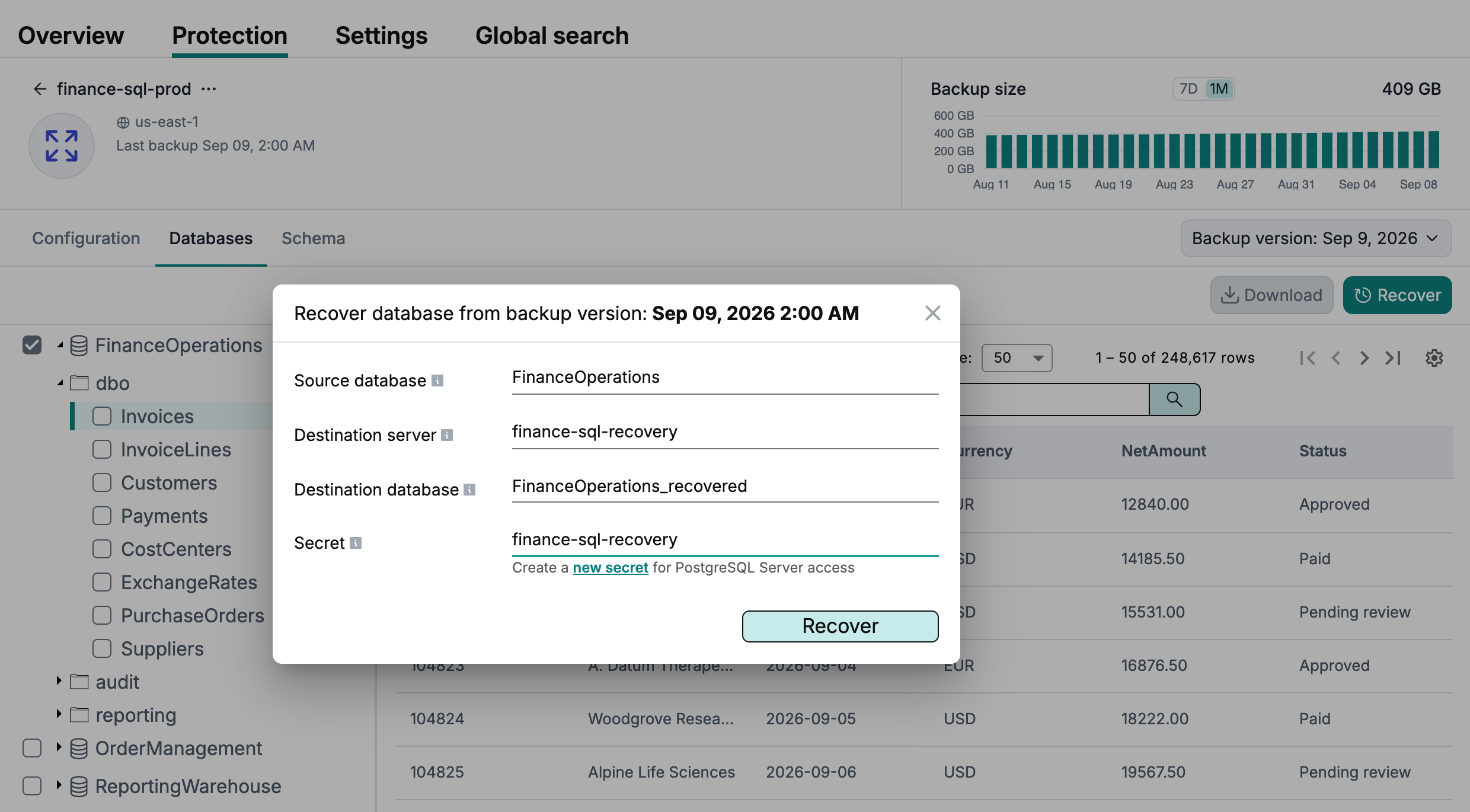
- In the database tree on the left, select the database and click Recover to open the recovery dialog.
- Select the target SQL Server instance where the new database will be created (the Destination server field).
- Specify a new database name (the Destination database field). Afi does not overwrite an existing database during full database recovery.
- Create or select a Database Login secret for access to the destination SQL Server instance.
- Click Recover to start the database recovery.
Afi will display the recovery progress on the Activity → Tasks tab and send you an email notification once recovery completes.
Information
When you click the Source database or Destination server field, Afi automatically shows a searchable list of databases in the backup or destination instances, respectively.
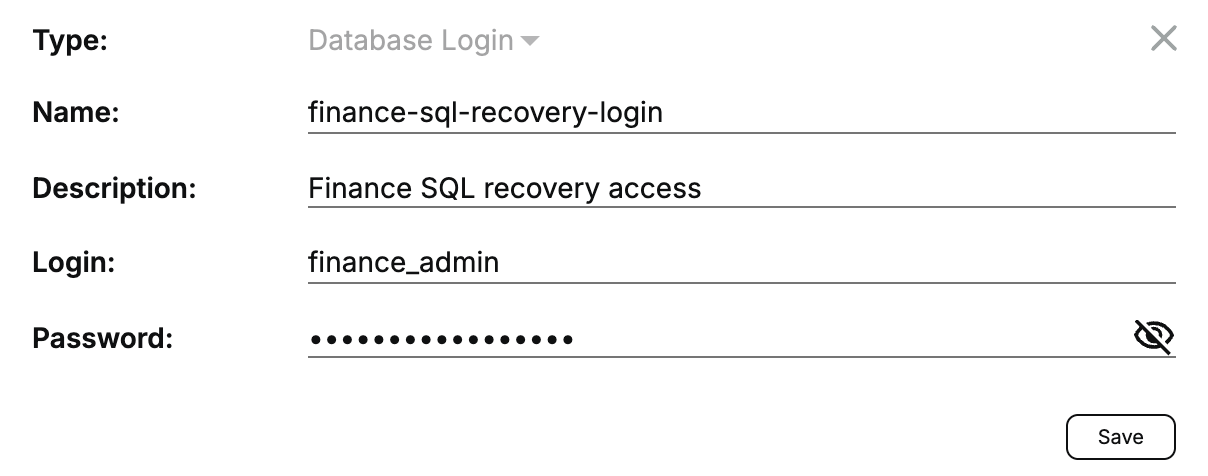
Create a Database Login secret
You can create a Database Login secret (login/password pair) directly in the recovery dialog. Give it a unique name, then enter the login and password that Afi will use to connect to the destination SQL Server instance. The secret is securely stored on the Afi side in encrypted format and can be reused for future recoveries with that server.
Information
If you don't want to retain the server credentials on the Afi side after the recovery, you can delete the corresponding secret on the Service → Settings → Secrets tab.
Table
When you select individual tables in the database tree and click Recover, Afi recreates those tables with basic column definitions and primary keys. In this mode, other indexes, constraints, triggers, identity properties, and computed-column expressions are not recreated. This limitation applies only to recovery of individually selected tables; full database recovery restores the complete backed-up schema.
To recover one or more tables:
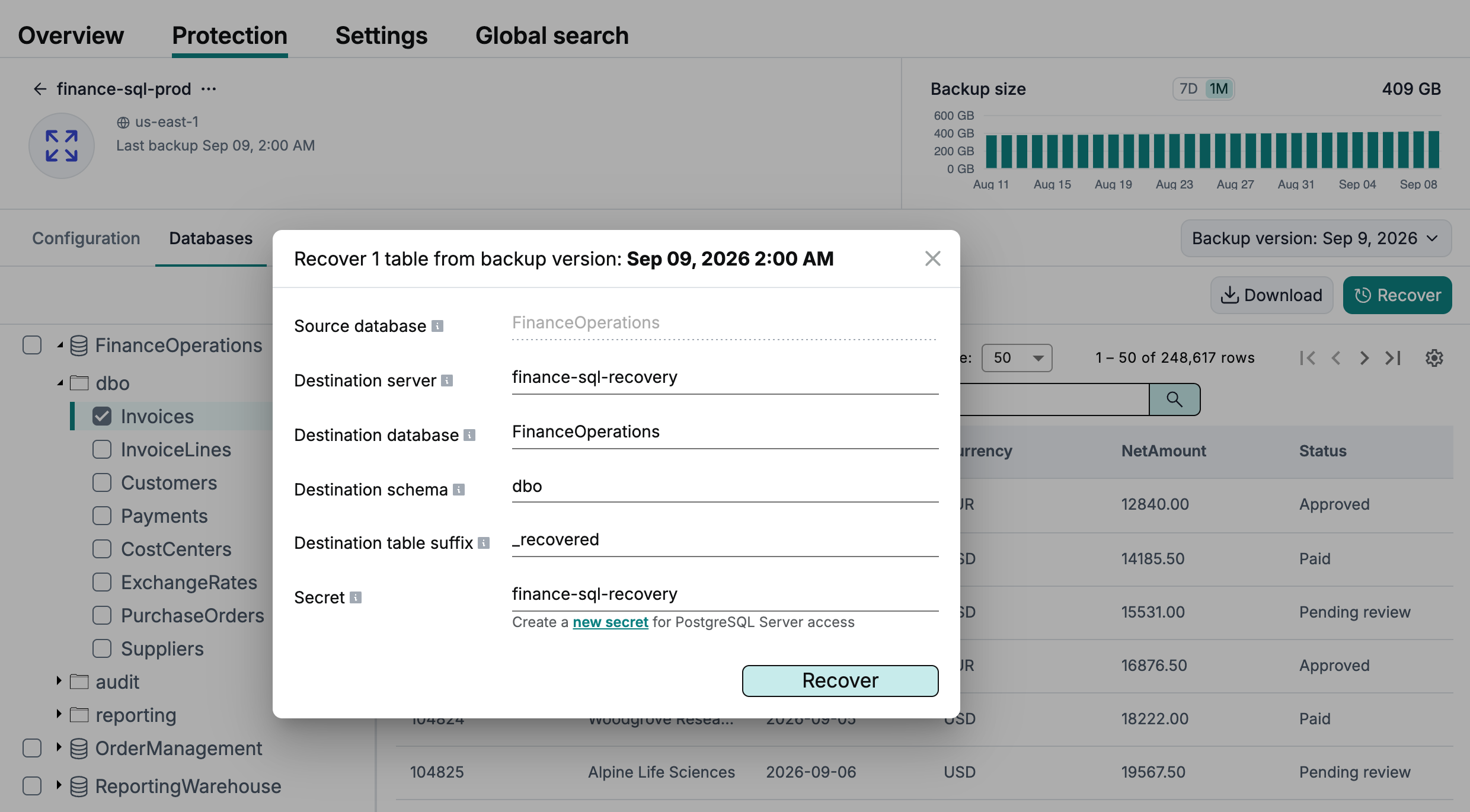
- In the database tree on the left, select the table or tables and click Recover to open the recovery dialog.
- Select the target SQL Server instance (the Destination server field).
- Specify the names of the database and schema where the restored tables should be created (the Destination database and Destination schema fields).
- Specify the suffix for the restored table names (the Destination table suffix field). For example,
_recoveredrestoresInvoicesasInvoices_recovered. Choose names that do not already exist in the destination schema. - Create or select a Database Login secret for access to the destination SQL Server instance.
- Click Recover to start the table recovery.
You can recover into an existing database or specify a new database name. Afi creates the destination database and schema if they do not exist. Existing tables are not overwritten.