Troubleshooting
This article explains common reasons for Salesforce backup and recovery failures and warnings, and how to investigate and resolve them.
How to view and check tasks with Failed or Warning status
On the Overview dashboard, the 7-day status widget shows how many tasks failed or completed with warnings in the past seven days. The 24-hour status widget summarizes task results for the past 24 hours.
You can configure service reports on Configuration → Reports to receive periodic licensing, protection, and backup-status updates via email, Slack, Microsoft Teams, or Google Chats.
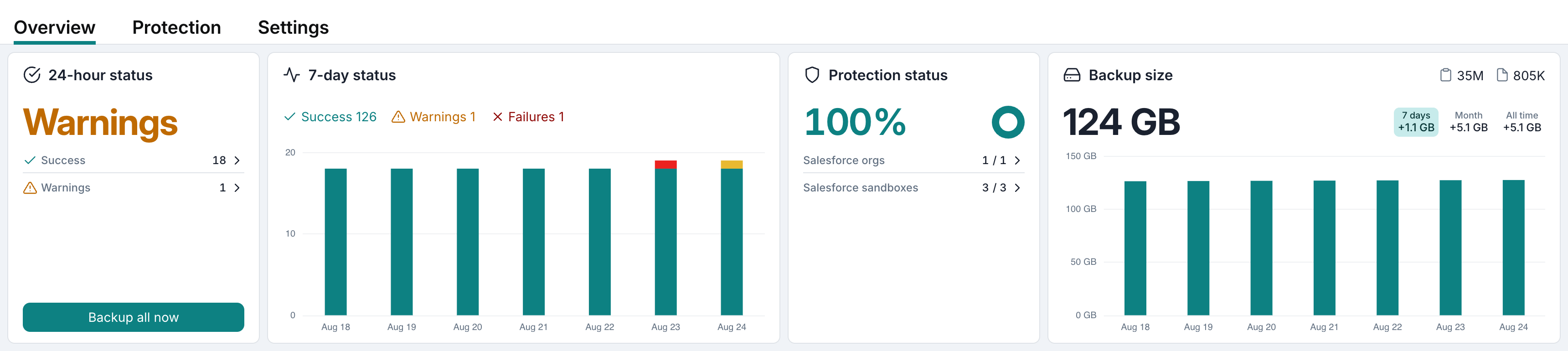
To find tasks with errors or warnings, go to Activity → Tasks and select Failed or Warning in the Status filter.

Click a task to review its details and any reported errors or warnings. Each entry in the Warnings section explains the issue and identifies the affected SObject and, where available, the record ID.
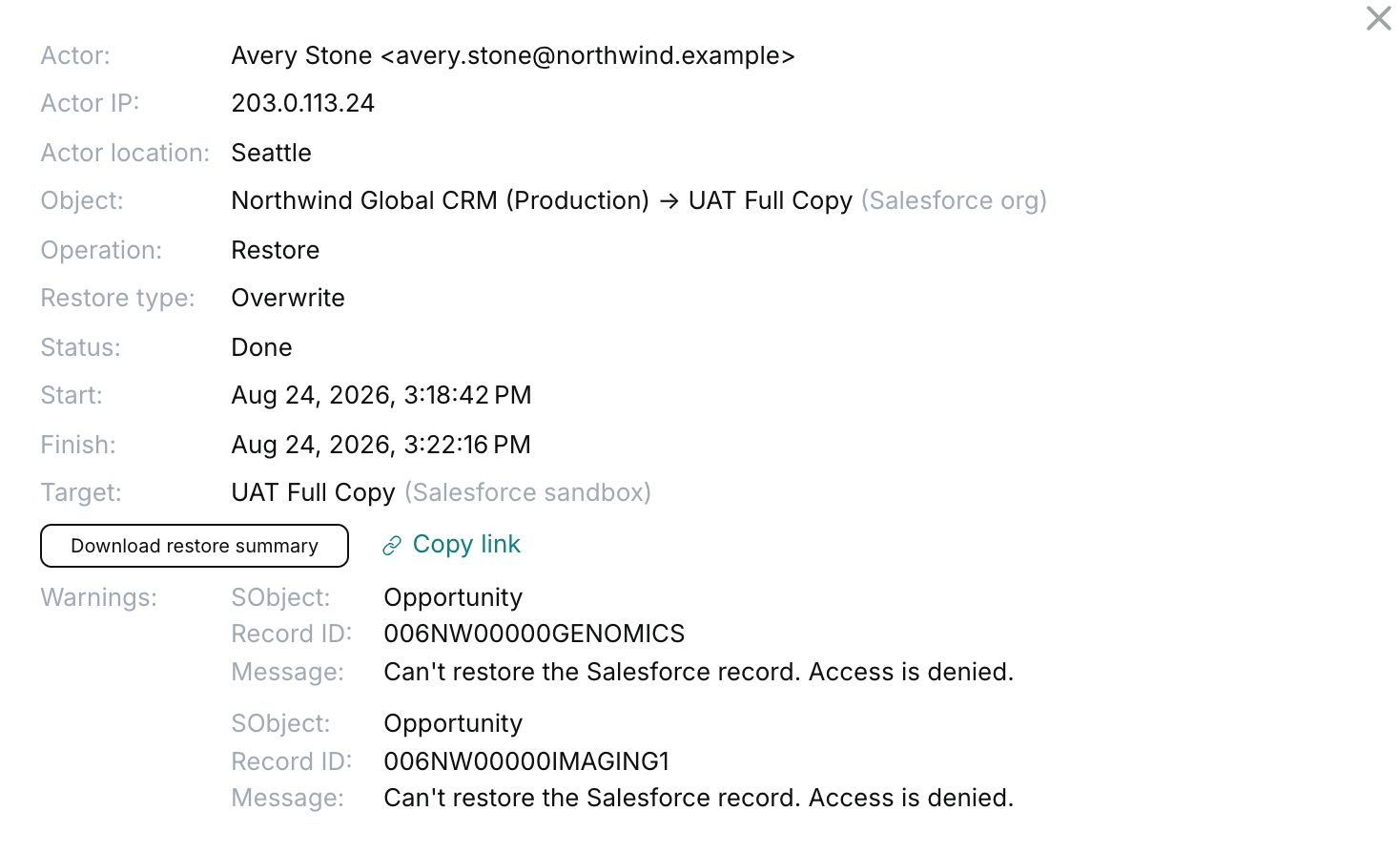
For recovery tasks, also review the recovery summary, if available.
Backup and recovery failures
A Failed status means the operation could not complete.
Most common backup failures:
| Error | What to check |
|---|---|
| Afi user or storage quota exceeded | Review the tenant's service usage and available quota on Licensing → Subscriptions. |
| Salesforce access unavailable | Confirm that the organization is available, the Afi managed package remains installed, and the user who authorized Afi is active and has the required API, object, field, and File access. See Salesforce permissions. |
| Sandbox connection changed | Check a sandbox's connection on Service → Protection before retrying the backup. |
After resolving the issue, click Backup now to retry the backup.
Most common recovery failures:
| Error | What to check |
|---|---|
| Recovery destination unavailable | Confirm that the selected organization or sandbox is connected and accessible, and that its integration user has the required write permissions. Recheck a sandbox's connection. |
| Salesforce storage limit reached | Review data and file-storage usage in the destination Salesforce organization and free the required capacity before retrying recovery. |
If you selected Disable Salesforce automation during recovery, check that the previously active flows, workflow rules, and validation rules are enabled again. An interrupted recovery can leave them disabled. See Recovery behavior for details.
Backup and recovery warnings
A Warning status means the operation completed, but some SObjects or records were skipped. Open the task details to identify the affected data and the reported reason.
Common warnings that might occur during recovery include:
| Warning | What to check |
|---|---|
| Missing or read-only objects or fields | Check the destination schema and the integration user's write permissions for the reported objects and fields. |
| Missing required parent record | Check that the related parent exists in the destination or is available in the backup for recovery. |
| Salesforce validation error | Review the reported validation condition and the destination's required fields, duplicate rules, and automation. Apex triggers remain active during recovery and can affect writes. |
Afi restores all selected data except the skipped SObjects or records. After resolving the reported issues, we recommend selecting only the skipped data for recovery. You can also repeat the recovery for the entire original selection.
Recovery CSV exception report
For a completed recovery with skipped records, open the recovery task on Activity → Tasks and click Download restore summary. The CSV lists each recorded skip in three columns: sobject (Salesforce object), record_id (original record ID), and error. The report lists exceptions; it does not list every successful write or every source-to-destination ID mapping.
Paused backups or restores
A common reason for a paused backup is reaching Salesforce API limits during the initial synchronization of a production organization or sandbox. Afi pauses the affected task and retries it automatically, resuming from the saved state once Salesforce allows API requests again. Paused backups typically do not require manual troubleshooting. After the initial synchronization, subsequent incremental backups usually complete faster.
A backup or recovery task can also pause because of a temporary Salesforce service error. Afi retries the task automatically, and it normally completes once the issue is resolved. The Afi team continuously monitors paused tasks and proactively investigates recurring issues.